Before following these steps, make sure to stop your server first. This is to avoiding breaking anything on your server while you edit.
**Step 1:** Head to your game panel and look for your **File** **icon** on the left hand side. // Photos to be added on AH 2.0 **Step 2:** Look for the file that says (**enshrouded\_server.json**) and open it. // Photos to be added on AH 2.0 **Step 3:** Scroll right down to the bottom till you see all the roles listed in the file. Here, you can add in these new roles, this will allow you to give out the correct roles to your players when they join.Before you copy the code, please look at this picture and make sure you add it in this section where the arrow points too so you don't mess up the code placement.
``` { "name": "Admin", "password": "Randomized password 01", "canKickBan": true, "canAccessInventories": true, "canEditBase": true, "canExtendBase": true, "reservedSlots": 1 }, { "name": "Friend", "password": "Randomized password 02", "canKickBan": false, "canAccessInventories": true, "canEditBase": true, "canExtendBase": true, "reservedSlots": 3 }, { "name": "Guest", "password": "Randomized password 03", "canKickBan": false, "canAccessInventories": false, "canEditBase": false, "canExtendBase": false, "reservedSlots": 0 } ``` // Photos to be added on AH 2.0 **Step 5:** When you add in the new code, you can now edit players roles and change there password. After you have done that, save the file and start your server.For players to join as there role, just give them there new password for there role. **Example:** "name": "Guest", "password": "Guest123", <--------- This password will allow players to join as a Guest. "canKickBan": false, "canAccessInventories": false, "canEditBase": false, "canExtendBase": false, "reservedSlots": 0
# Change Server Name**Before following these steps, make sure to stop your server first. This is to avoiding breaking anything on your server while you edit.**
**Step 1:** Head to your game panel and look for your **Startup** **icon** on the left hand side. // Photos to be added on AH 2.0 **Step 2:** Look for the box that says **\[SERVER\] SERVER NAME.** When you find this box, click on it and add what ever you want your server name to be. // Photos to be added on AH 2.0**After Completing these steps, you can now go and start you server.**
# Add Server Password**Before following these steps, make sure to stop your server first. This is to avoiding breaking anything on your server while you edit.**
**Step 1:** Head to your game panel and look for your **Startup** **icon** on the left hand side. // Photos to be added on AH 2.0 **Step 2:** Look for the box that says **\[SERVER\] SERVER PASSWORD** When you find this box, click on it and add what ever you want your server password to be. // Photos to be added on AH 2.0**After Completing these steps, you can now go and start you server.**
# Change Max Player Count**Before following these steps, make sure to stop your server first. This is to avoiding breaking anything on your server while you edit.**
**Step 1:** Head to your game panel and look for your **Startup** **icon** on the left hand side. // Photos to be added on AH 2.0 **Step 2:** Look for the box that says **\[SERVER\] Max Players.** When you find this box, click on it and change it to how many player you want.Max player count is 16. For every person that joins your server, it will use more CPU and Ram.
// Photos to be added on AH 2.0**After Completing these steps, you can now go and start you server.**
# Connect To Your Server**There are a few ways to connect to your server.**
**Enshrouded Server Menu:** Open Enshrouded and click play: 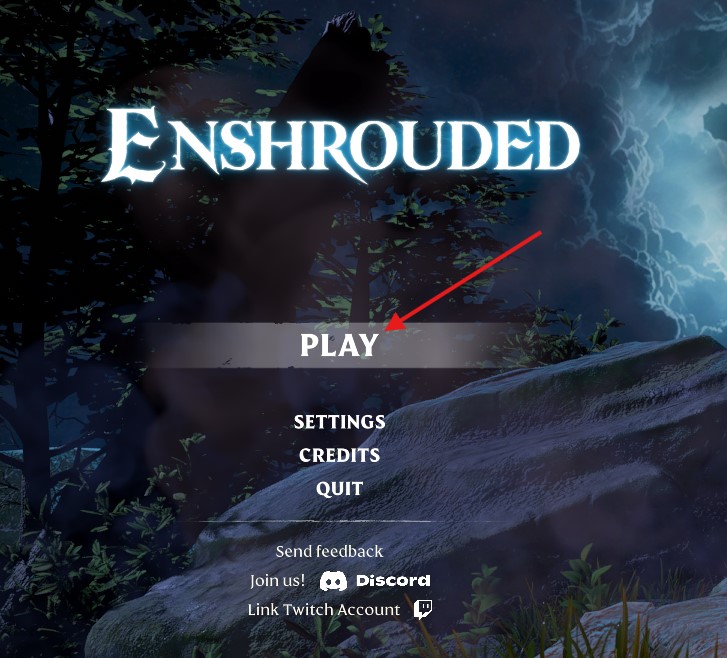 Then Click Join: 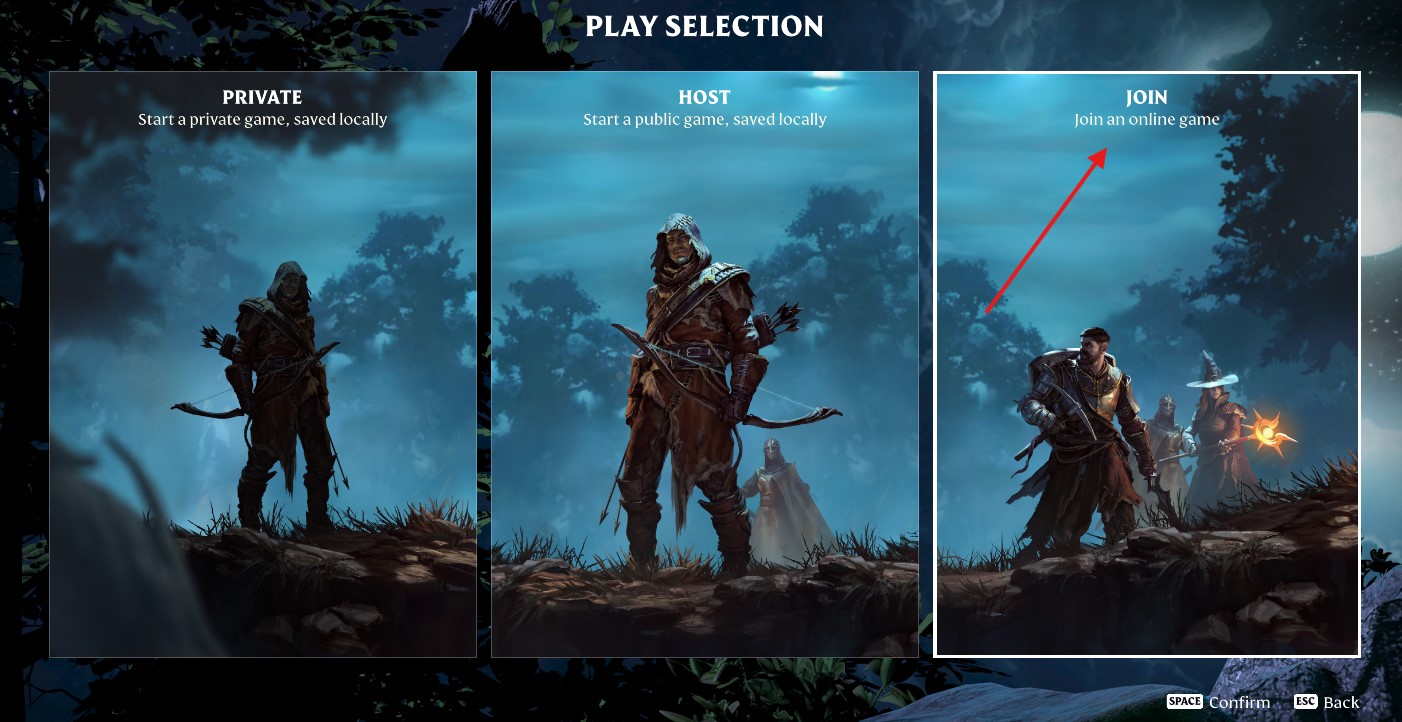 **Make sure to tick the 3 boxes first,** as this will help find your server. 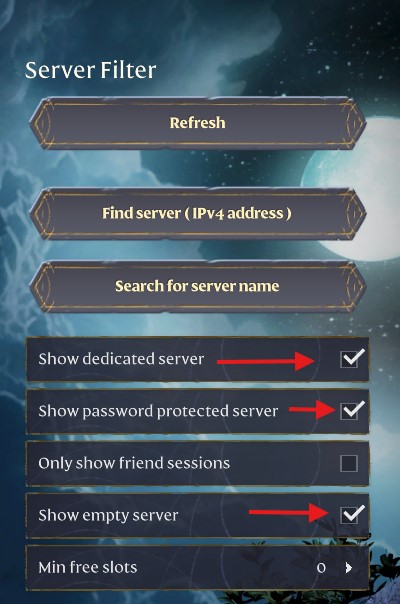 Head to the **(Search for server name)** box, type in your server name and click confirm.**Make sure to follow the Steps from 1 to 3 in the photo below.**
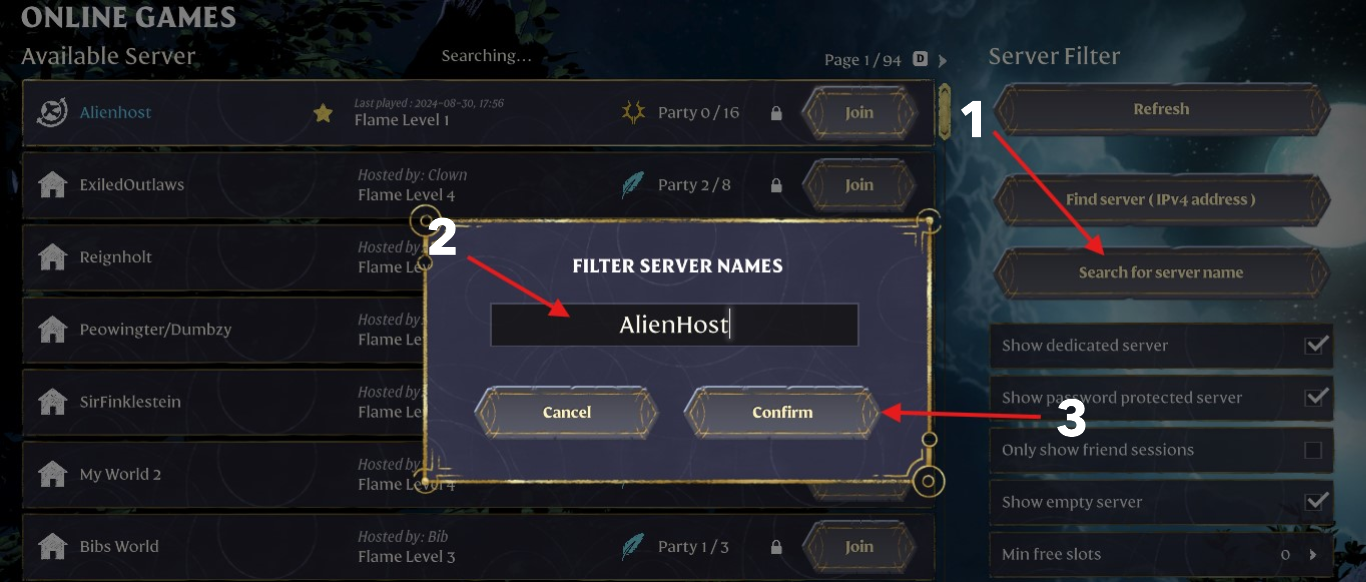 **You should now see your server now and be able to join it by clicking the (Join Button).** 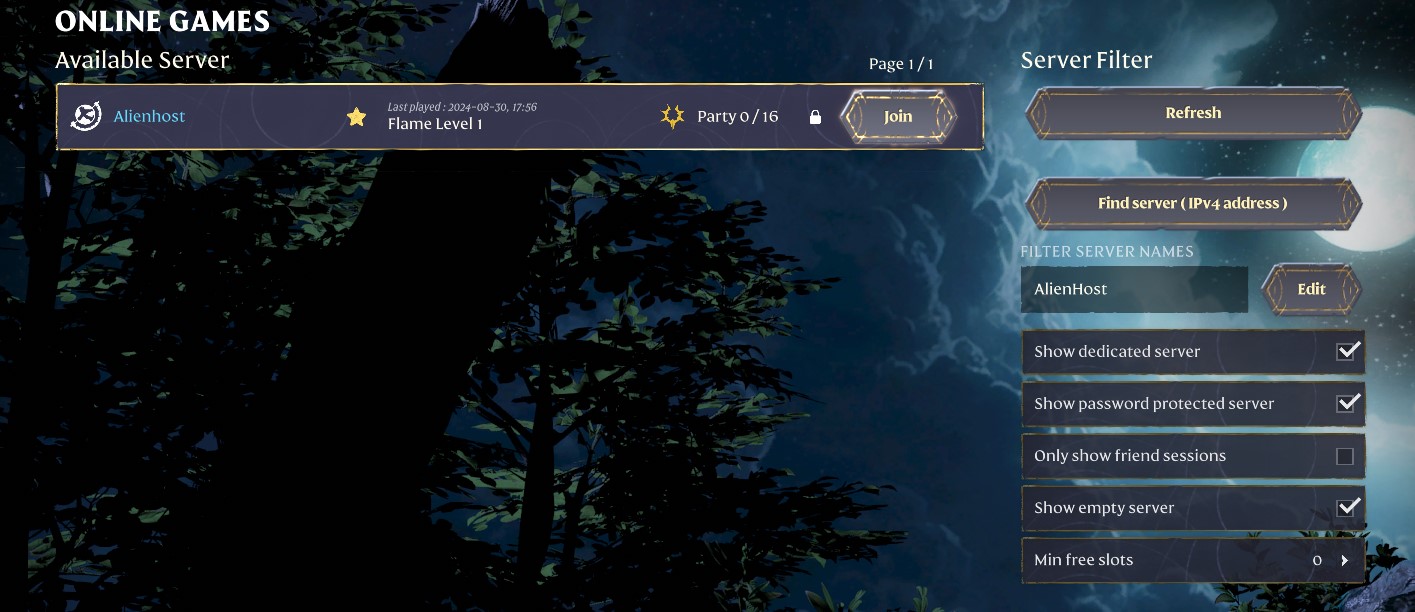If you have a certain password for your Admins, Members or Guests. Make sure they put in there correct passwords, so they can join with there correct roles. To check more about Roles click this link -> [How To Create Roles](https://help.alienhost.net/books/enshrouded-server-setup/page/create-roles)
If you can't find your server there may be a few reason for this. **1. Someone has connected to your server.** This would mean the (Show Empty Server) Box will not show your server now. All you need to do is just tick the box to turn it off and click refresh. This should show your server now. **2. You have just turned your server on in the panel.** Sometimes, your server can take anywhere between 1 to 5 minutes to show on the Online Server Page. Just make sure to give it time and click refresh time to time. **3. You haven't followed the steps correctly.** Always make sure to follow every step as it will guide your through each process. **4. Make sure you have setup your server correctly.** Make sure you have setup all your settings correctly and check for any console errors. If you think there is something wrong with these steps, do feel free to contact us on discord so we know and can fix it.
How to Favourite your server:
To favourite your server, just click the star icon as seen in the picture. Make sure it's turned yellow. You can also click **F** to Favourite it to, just make sure your server is highlighted for that. [](https://help.alienhost.net/uploads/images/gallery/2024-09/favourite.jpg) # Join And Use Admin RoleBefore following these steps, make sure to stop your server first. This is to avoiding breaking anything on your server while you edit.
**Step 1:** Head to your game panel and look for your **File** **icon** on the left hand side. // Photos to be added on AH 2.0 **Step 2:** Look for the file that says (**enshrouded\_server.json**) and open it. // Photos to be added on AH 2.0 **Step 3:** Scroll right down to the bottom till you see all the roles listed in the file. And look for the Admin role. Here, you can change its password and admin settings.Here you can change all these setting for your admin: "canAccessInventories": true, <---- Can access anyone inventory. "canEditBase": true, <---- Can edit anyone base. "canExtendBase": true, <---- Can expand anyone base. "canKickBan": true, <---- Can Kick or Ban players. "name": "Admin", <---- Player Role. "password": "1243", <---- Password to join as an Admin. "reservedSlots": 1 <---- If server is Full an Admin can still join because you have reserved a slot.
**Step 4:** Save file and start you server. When you go to join your server make sure to add in the Admin password so you join as an Admin and receive its permissions.