# Why is my server using 100% of the CPU?
While it sounds terrifying to see **100%** usage of your **CPU.** Don't panic, while this is not perfect, your server should be running perfectly fine. You may think that **100% CPU** usage, that the whole node your server is running on is overwhelmed. **No**.
On our **Game Panel** a 100% represents a single**[ thread](https://www.liquidweb.com/blog/difference-cpu-cores-thread/)** from the node's **CPU.** Typically, most of our **CPU's** on **AlienHost** consist of 2 Threads per 1 Core. In most cases, the usage of **100%** you are experiencing on the **Game Panel** would only be a fraction of the whole **CPU** potential, so there is nothing to worry about, although you might notice in some games like Minecraft, once your CPU starts to reach **200%** or even above it, the game performance might start to decrease, and your server might begin to lag.
For more accurate information about the load on the node your server is running on, please follow the following steps:
1. Navigate to your **[Game Panel](https://panel.alienhost.net/)**
2. Find your server: 
3. Click on it and navigate to **Settings** tab [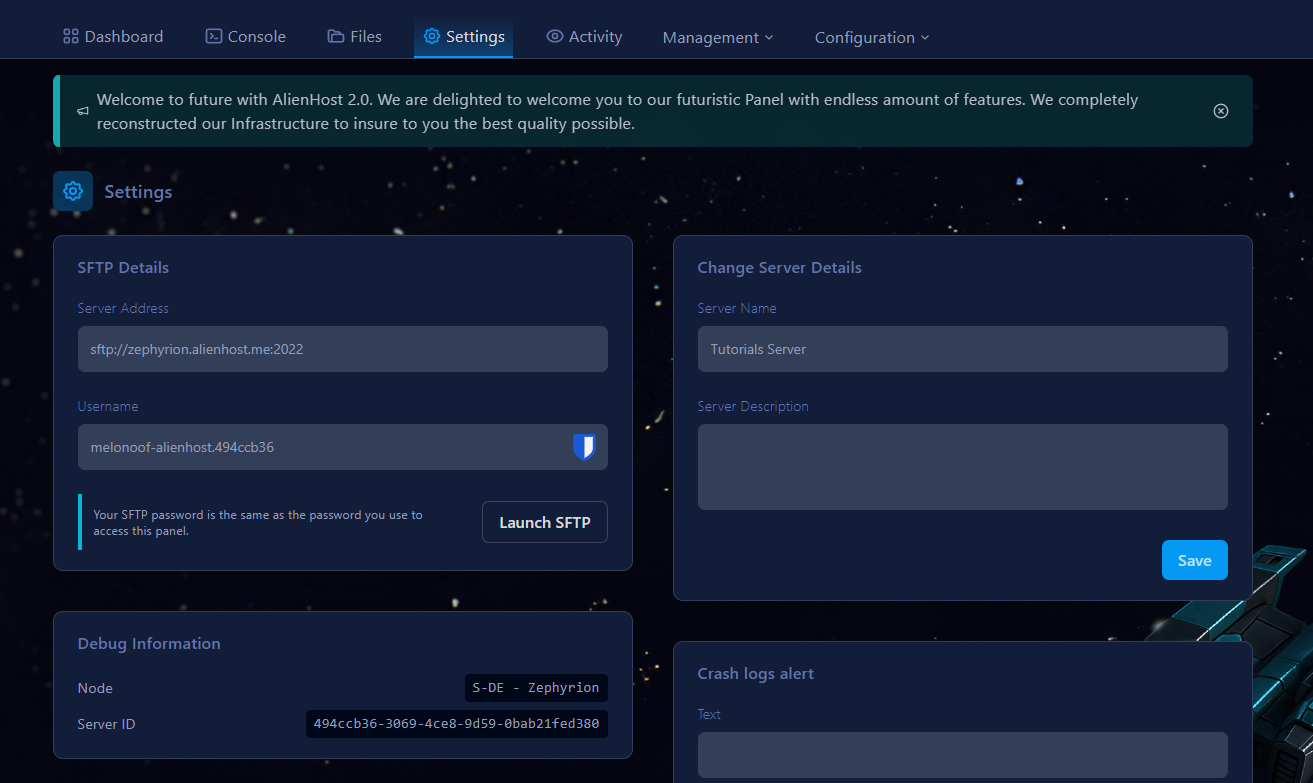](https://help.alienhost.net/uploads/images/gallery/2025-07/P1bimage.png)
4. You will be presented with a screen and information about your server. Remember the code name of your node. In this case it's S-DE - Zephyrion. [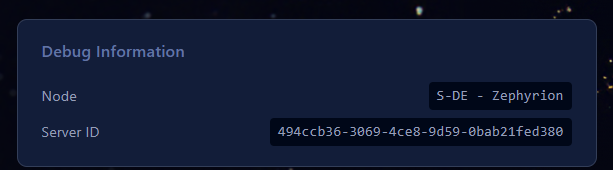](https://help.alienhost.net/uploads/images/gallery/2025-07/oP5image.png)
5. Navigate to our **[Monitor Service](https://monitor.alienhost.net)** and from the selector select the Node your server is located at: [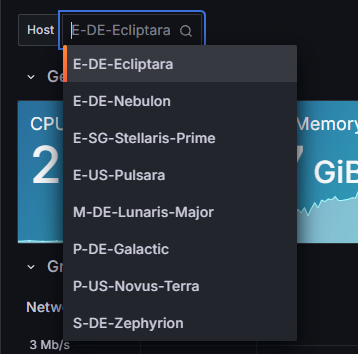](https://help.alienhost.net/uploads/images/gallery/2025-07/J50image.png)
6. Once you click it, you will be presented with **LIVE** information about the node your server is running on. [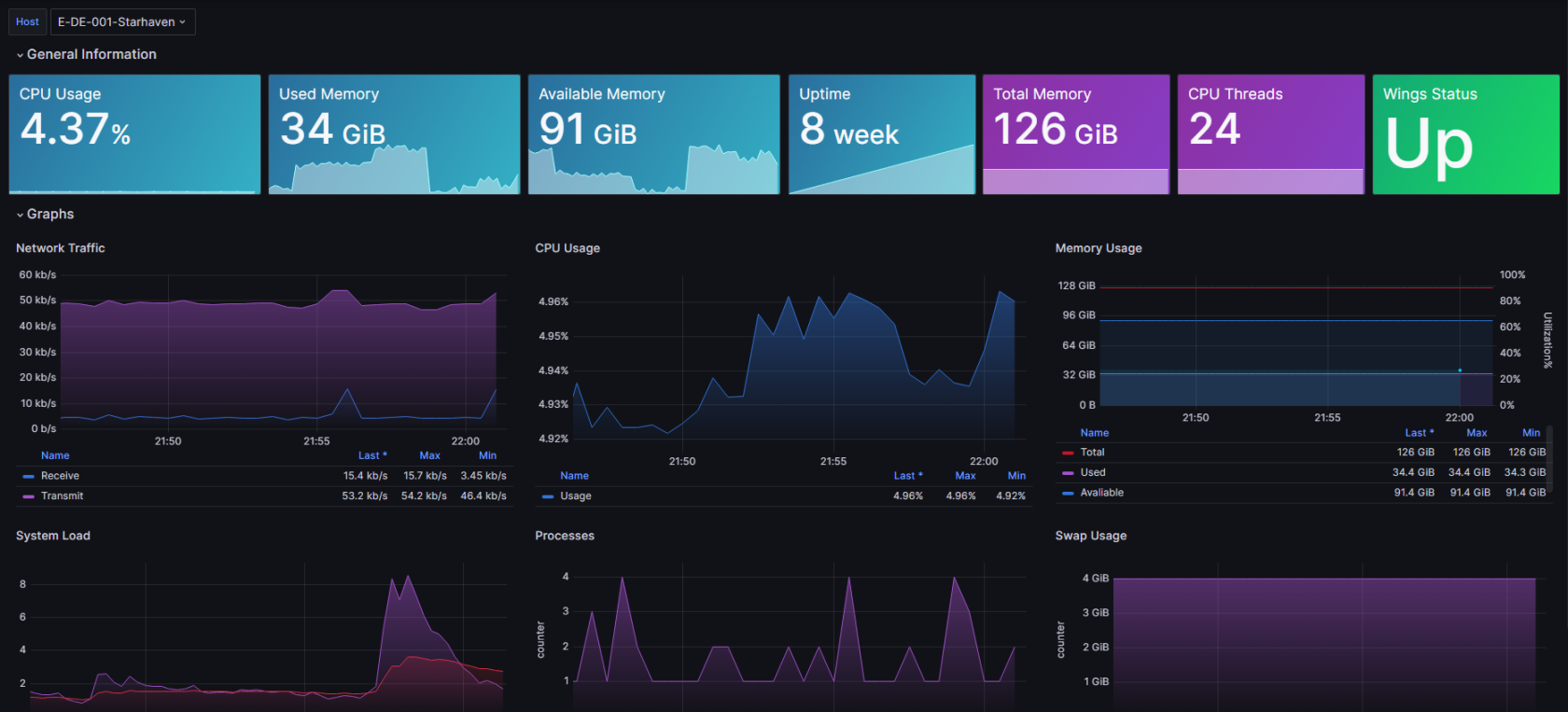](https://help.alienhost.net/uploads/images/gallery/2023-12/Fqmimage.png)
You can find a guide for optimising your server [here](https://github.com/YouHaveTrouble/minecraft-optimization)!