# IP and domains


# How to configure domain on Cloudflare

#### **Make sure to have purchased a domain with your registrar.**

#### **1. A Record**

When on Cloudflare, on the left you got a sidebar, click on DNS and then go to "Records"

[![Cloduflare1.webp](https://help.alienhost.net/uploads/images/gallery/2024-01/scaled-1680-/cloduflare1.webp)](https://help.alienhost.net/uploads/images/gallery/2024-01/cloduflare1.webp)

Then create your A record

In the "**type**" box select "**A**"

In the "**Name**" slot you can put numbers, letters or "**@**"

You may be wondering what is the name slot, we can say it's your domain prefix.

**Example**: I own Example.net, if I set "name" to **play** I have to put play.example.net to join my minecraft server

Else, if I put @ in there, I can join with example.net

In "**IPv4**" slot you will put your server's numerical ip

You may be wondering "how do I find it, it's showing a subdomain" to which I will answer with: there is [this tutorial](https://help.alienhost.net/books/guides/page/how-to-get-numeric-ipv4)

[![Cloudflare2.webp](https://help.alienhost.net/uploads/images/gallery/2024-01/scaled-1680-/cloudflare2.webp)](https://help.alienhost.net/uploads/images/gallery/2024-01/cloudflare2.webp)

#### **2. SRV Record**

<p class="callout info">You may want to set this up if your port is **not** <span style="text-decoration: underline;">25565</span></p>

Create a second record

Make sure the "Type" is SRV and not A

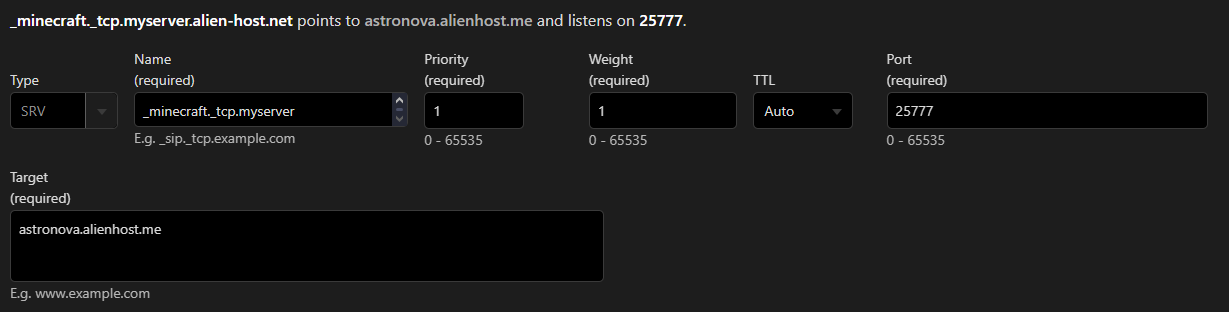
In the "name" slot you use the following line: **\_minecraft.\_tcp.** followed by your subdomain or domain if you are going to use one (in the picture below, the subdomain is **myserver**)

"**TTL**" should be "**Auto**"

"**Priority**" should be a low number e.g. 0 or 1

"**Weight**" should be below 5

"**Port**" is your server port, which can be found [in the console](https://help.alienhost.net/books/panel/page/overview)

**"Target"** has to be set to your domain/alias shown in the panel (view picture below for an example)

[![image.png](https://help.alienhost.net/uploads/images/gallery/2024-11/scaled-1680-/LdUimage.png)](https://help.alienhost.net/uploads/images/gallery/2024-11/LdUimage.png)
# How to get numeric IPv4

As you might have noticed in your Panel, your server does not contain a **IPv4** ,just an alias which could look like **e-de-001.alienhost.net** while this is easier to read and remember it is unfortunately not always usable in certain configurations and settings, with this guide we will show you how to use the given **alias** and turn it into numeric **IPv4:**

1. Navigate to the following **[website](https://www.nslookup.io).**
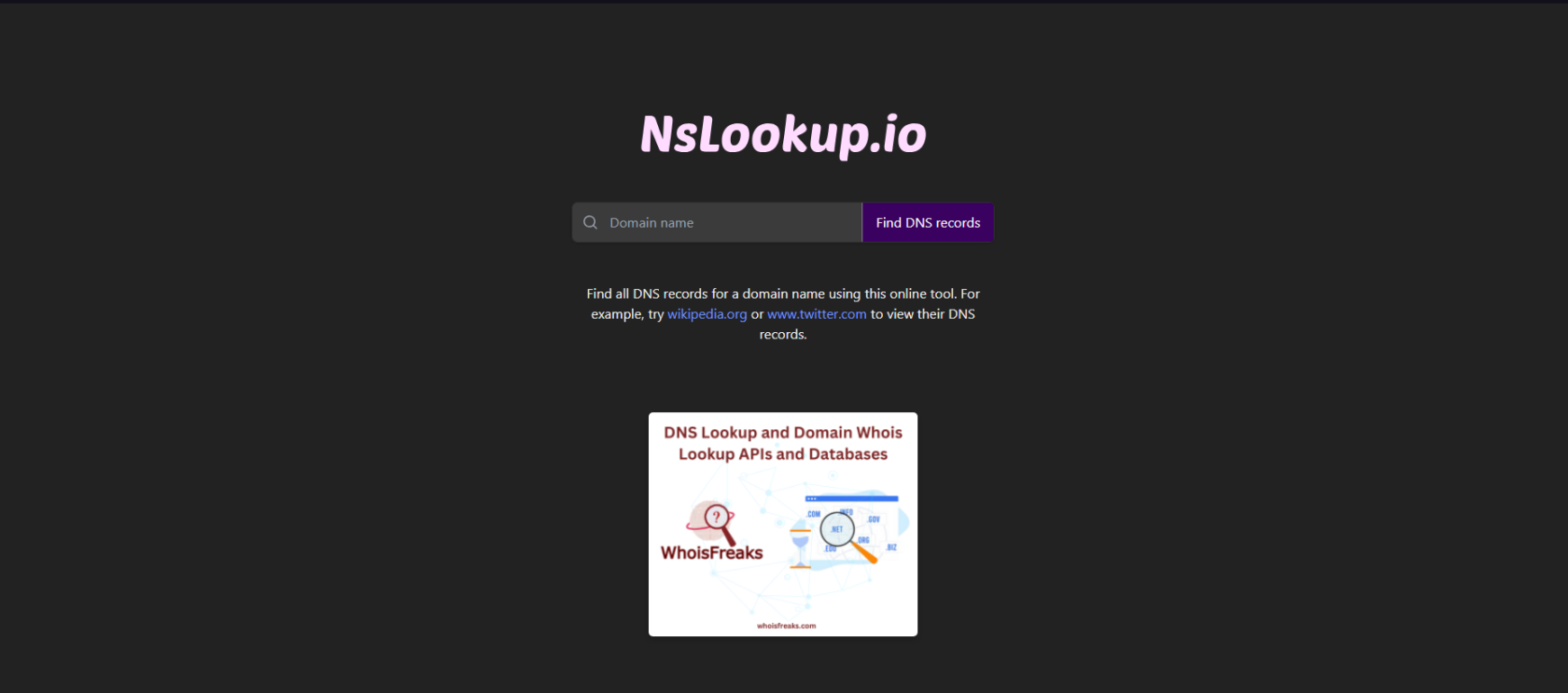
2. You will be prompted with a screen similar to this: [![image.png](https://help.alienhost.net/uploads/images/gallery/2023-12/scaled-1680-/MCEimage.png)](https://help.alienhost.net/uploads/images/gallery/2023-12/MCEimage.png)
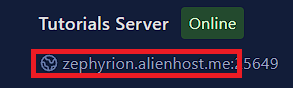
3. In the field saying **Domain Name** insert the visible alias of your server [![Screenshot 2025-07-12 141719.png](https://help.alienhost.net/uploads/images/gallery/2025-07/scaled-1680-/screenshot-2025-07-12-141719.png)](https://help.alienhost.net/uploads/images/gallery/2025-07/screenshot-2025-07-12-141719.png)
    
      
    To
    
    [![image.png](https://help.alienhost.net/uploads/images/gallery/2025-07/scaled-1680-/image.png)](https://help.alienhost.net/uploads/images/gallery/2025-07/image.png)
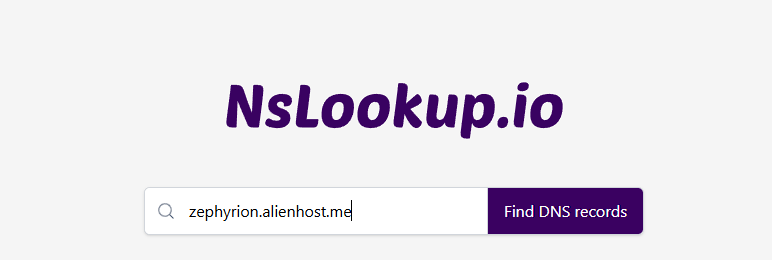
    
      
    and click the button **Find DNS records.**
4. You will be prompted with a similar result to this: [![image.png](https://help.alienhost.net/uploads/images/gallery/2023-12/scaled-1680-/0bBimage.png)](https://help.alienhost.net/uploads/images/gallery/2023-12/0bBimage.png)  
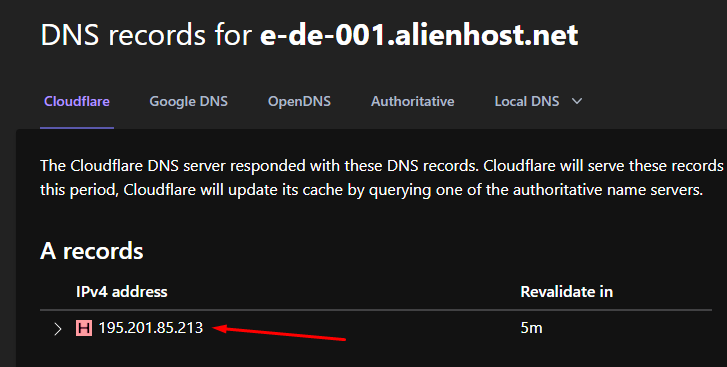
    Where you can see the **IPv4** of your server. In this case, **195.201.85.213**.

<p class="callout success">Great! Now you have your IPv4 and you are ready to use it.</p>