You may want to set this up if your port is **not** 25565
Create a second record Make sure the "Type" is SRV and not A In the "name" slot you use the following line: **\_minecraft.\_tcp.** followed by your subdomain or domain if you are going to use one (in the picture below, the subdomain is **myserver**) "**TTL**" should be "**Auto**" "**Priority**" should be a low number e.g. 0 or 1 "**Weight**" should be below 5 "**Port**" is your server port, which can be found [in the console](https://help.alienhost.net/books/panel/page/overview) **"Target"** has to be set to your domain/alias shown in the panel (view picture below for an example) [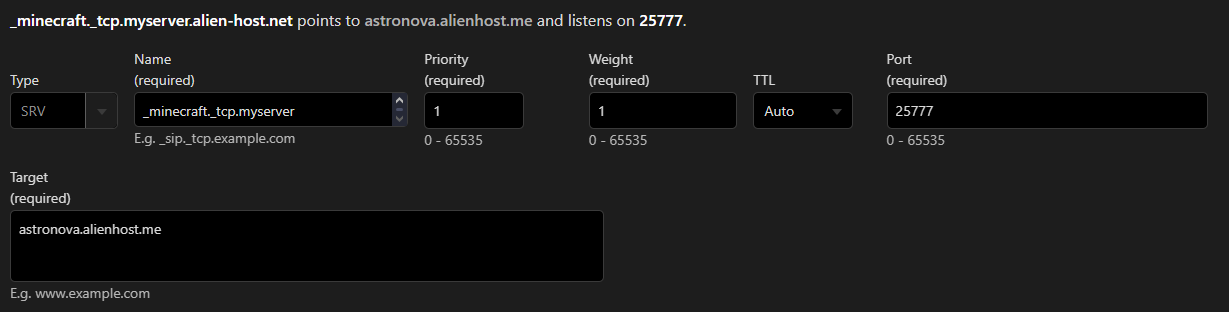](https://help.alienhost.net/uploads/images/gallery/2024-11/LdUimage.png) # How to get numeric IPv4 As you might have noticed in your Panel, your server does not contain a **IPv4** ,just an alias which could look like **e-de-001.alienhost.net** while this is easier to read and remember it is unfortunately not always usable in certain configurations and settings, with this guide we will show you how to use the given **alias** and turn it into numeric **IPv4:** 1. Navigate to the following **[website](https://www.nslookup.io).** 2. You will be prompted with a screen similar to this: [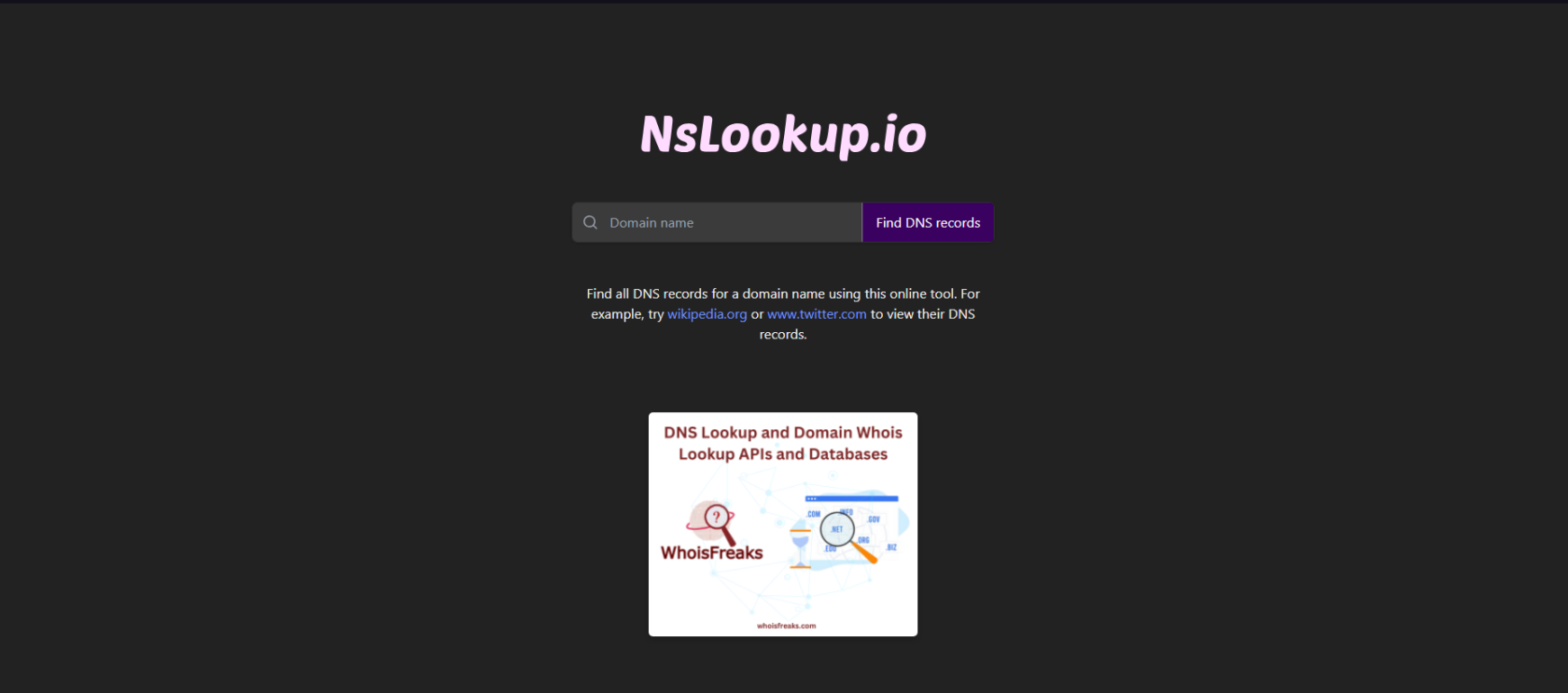](https://help.alienhost.net/uploads/images/gallery/2023-12/MCEimage.png) 3. In the field saying **Domain Name** insert the visible alias of your server [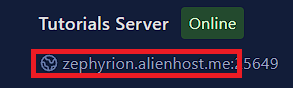](https://help.alienhost.net/uploads/images/gallery/2025-07/screenshot-2025-07-12-141719.png) To [](https://help.alienhost.net/uploads/images/gallery/2025-07/image.png) and click the button **Find DNS records.** 4. You will be prompted with a similar result to this: [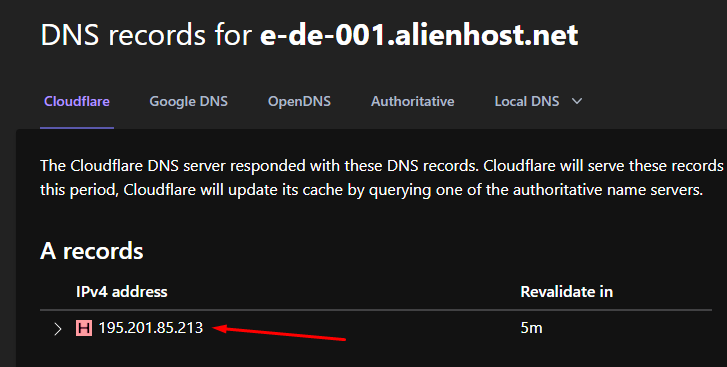](https://help.alienhost.net/uploads/images/gallery/2023-12/0bBimage.png) Where you can see the **IPv4** of your server. In this case, **195.201.85.213**.Great! Now you have your IPv4 and you are ready to use it.
# SFTP # Filezilla #### **1. Download** Download Filezilla (Client) by [clicking here](https://filezilla-project.org/download.php?type=client) --- #### **2. Getting credentials** Head to the settings tab of the server(s) you want to transfer files to [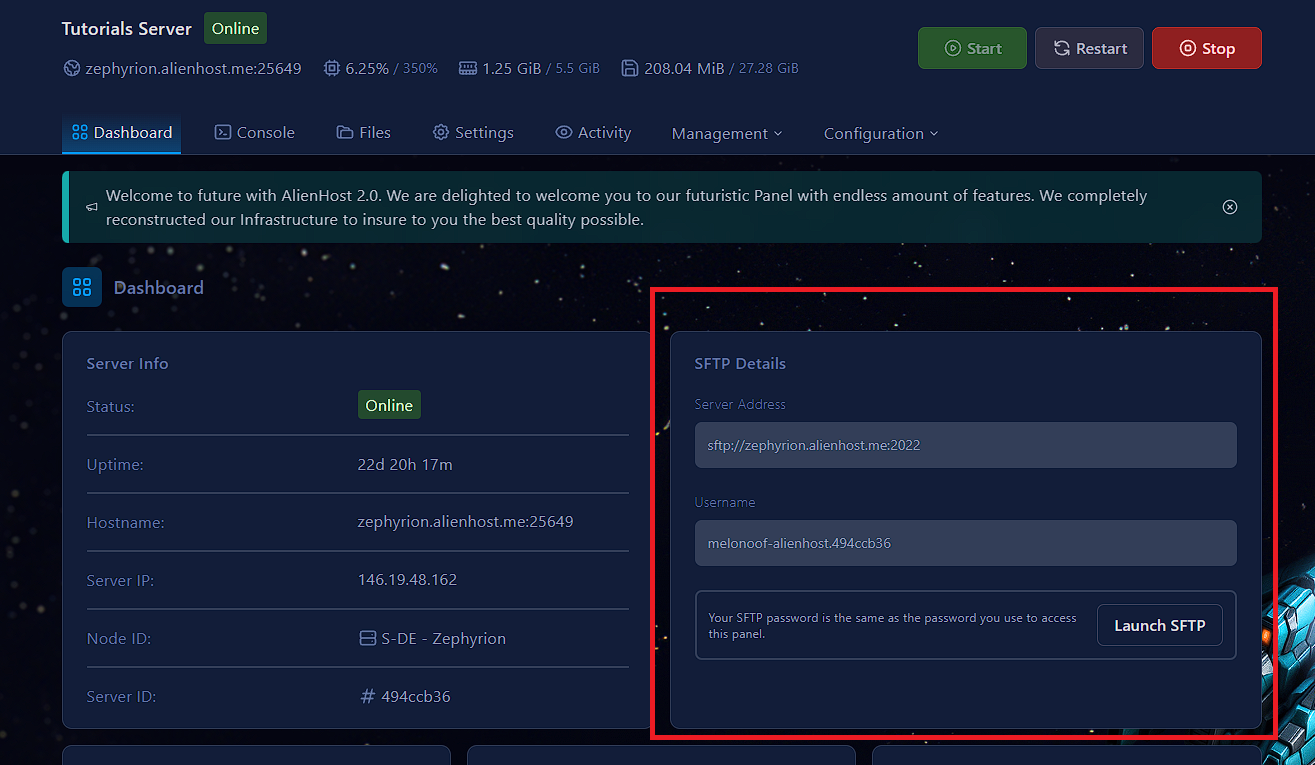](https://help.alienhost.net/uploads/images/gallery/2025-07/screenshot-2025-07-15-080612.png) --- #### **3. Connecting** Now start Filezilla, it's going to look somewhat like this: [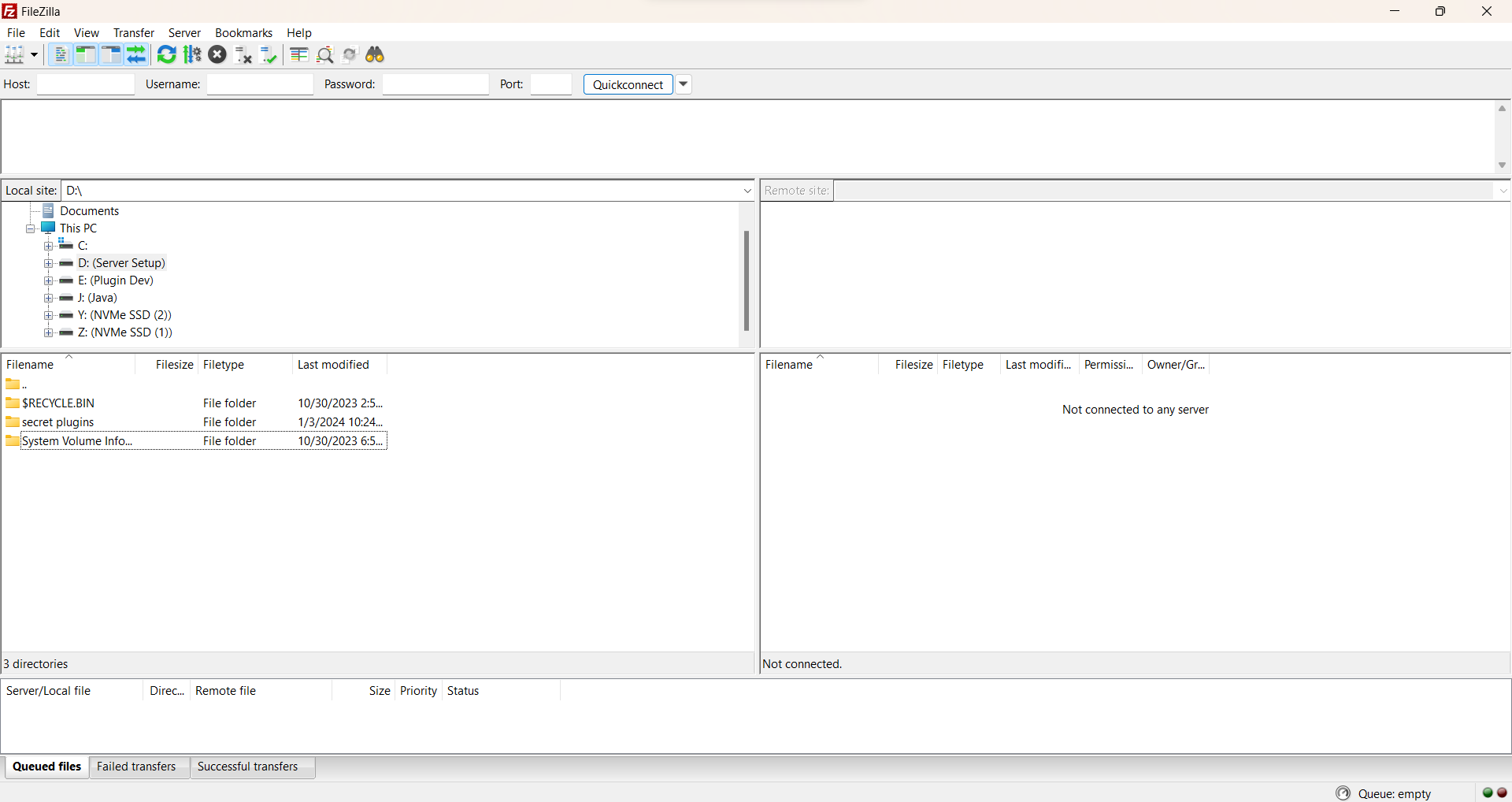](https://help.alienhost.net/uploads/images/gallery/2024-01/screenshot-2024-01-03-222522.png) In the host slot, enter the server address without the ":2022" (refer to the image in step 2) In the username slot you put the user name (refer to the image in step 2) In the password slot you put your panel's password In the port slot you put "2022" Should look like this: [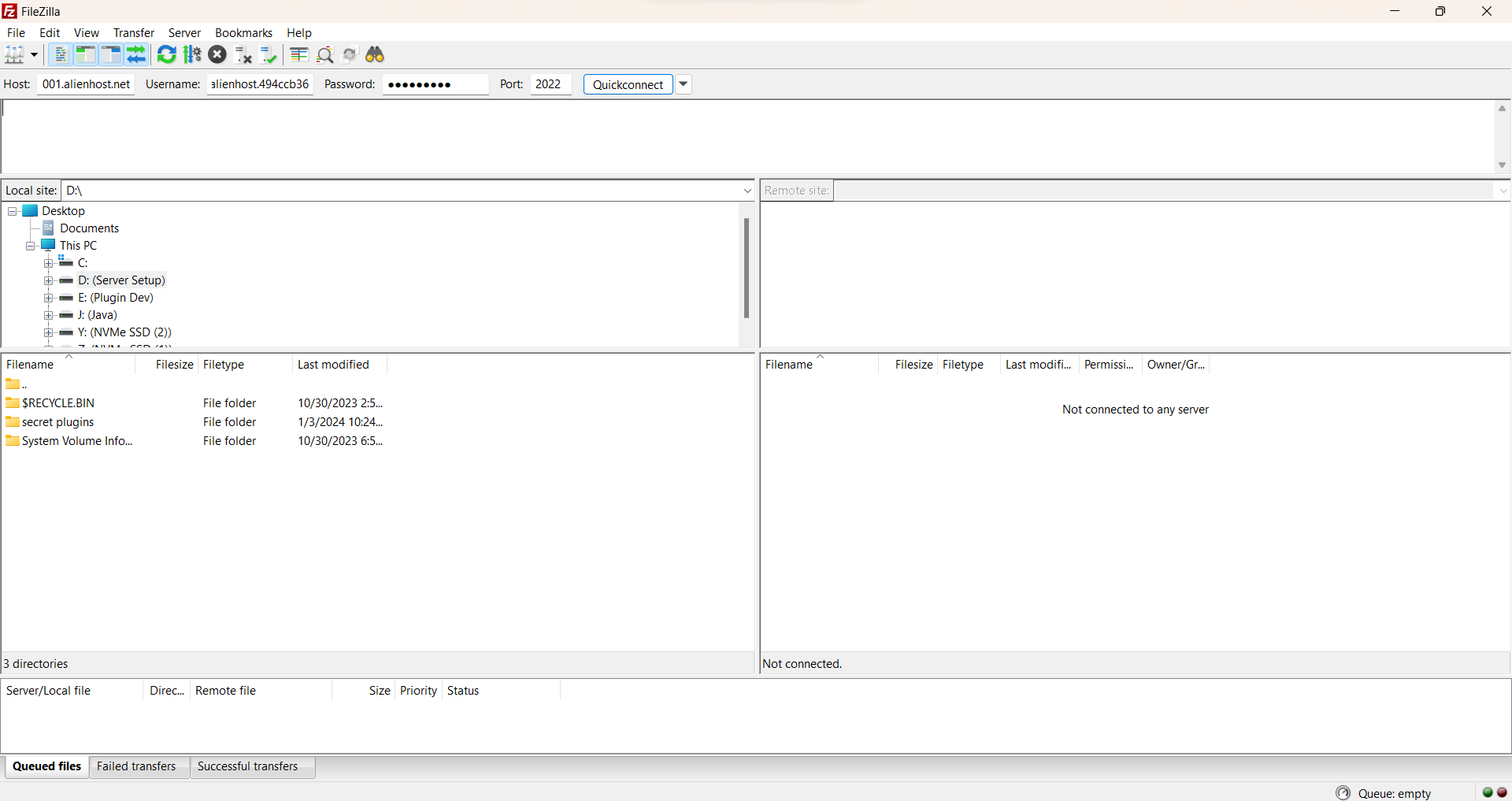](https://help.alienhost.net/uploads/images/gallery/2024-01/screenshot-2024-01-04-165945.png) Now click "Quickconnect" and drag & drop the files you want to transfer [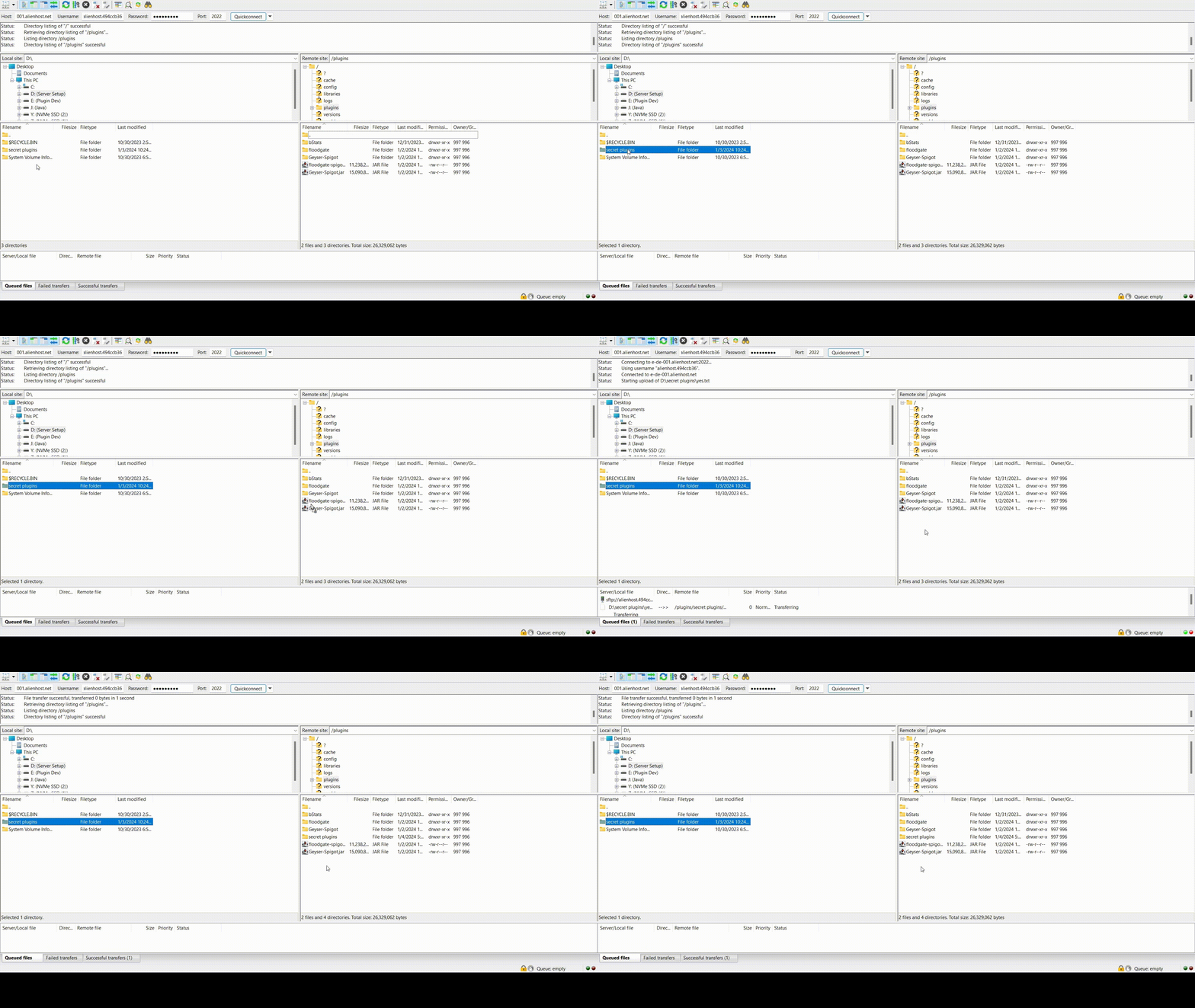](https://help.alienhost.net/uploads/images/gallery/2024-01/0104.gif)Make sure to drag it in the correct folder/directory
# WinSCP #### **1. Download** Download [WinSCP](https://winscp.net/eng/download.php) --- #### **2. Getting credentials** Head to the settings tab of the server(s) you want to transfer files to [](https://help.alienhost.net/uploads/images/gallery/2025-07/screenshot-2025-07-15-080612.png) --- #### **3. Connecting** Connect by clicking Launch SFTP, a popup will appear on your screen. [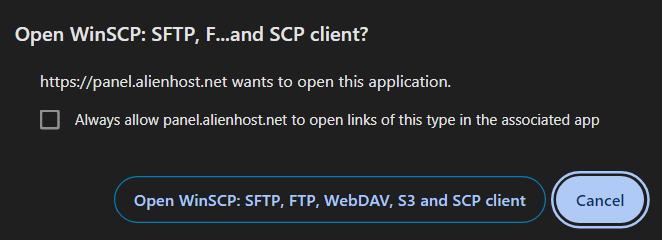](https://help.alienhost.net/uploads/images/gallery/2024-01/screenshot-2024-01-04-215833.png) Click on "Open WinSCP" [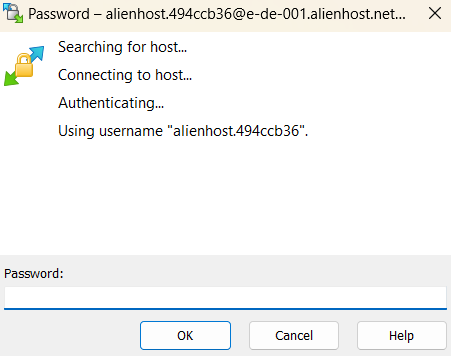](https://help.alienhost.net/uploads/images/gallery/2024-01/screenshot-2024-01-04-215934.png) Put in your panel's password and click "Ok" Now you should be connected (if the password was correct). ##### **3a. How to transfer files** Select the file you want to transfer by left clicking on it, wait 1 or 2 seconds, now click on it again and drag it in the correct directory. You successfully transferred a file! # Databases # Export & Import your SQL Database ## **Step 1: Get Database Connection Details from Pterodactyl Panel** 1. **Log in to Pterodactyl Panel**: - Login into your account on the [panel](https://panel.alienhost.net/), if you haven't 2. **Access the Server’s Database**: - Go to the server where the database is allocated at. - Find and click on the "Databases" tab on the navigation menu.[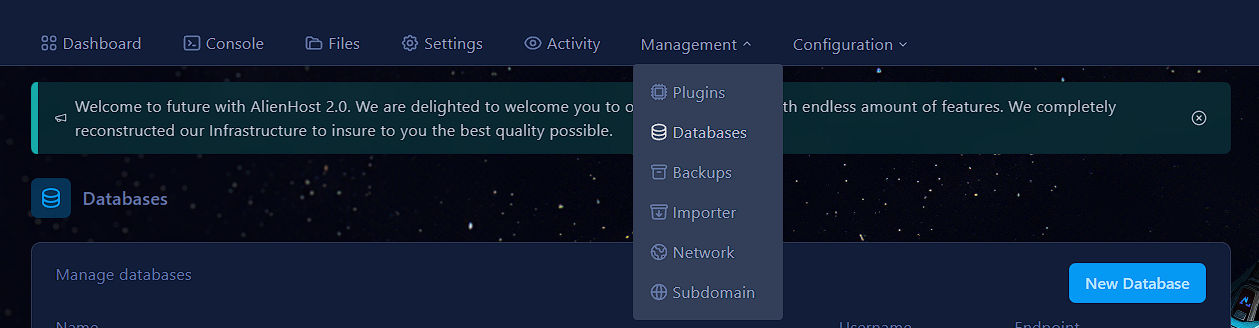](https://help.alienhost.net/uploads/images/gallery/2025-07/OxBimage.png) Here, to export/import a database file (.sql format), click on one of the 2 buttons. [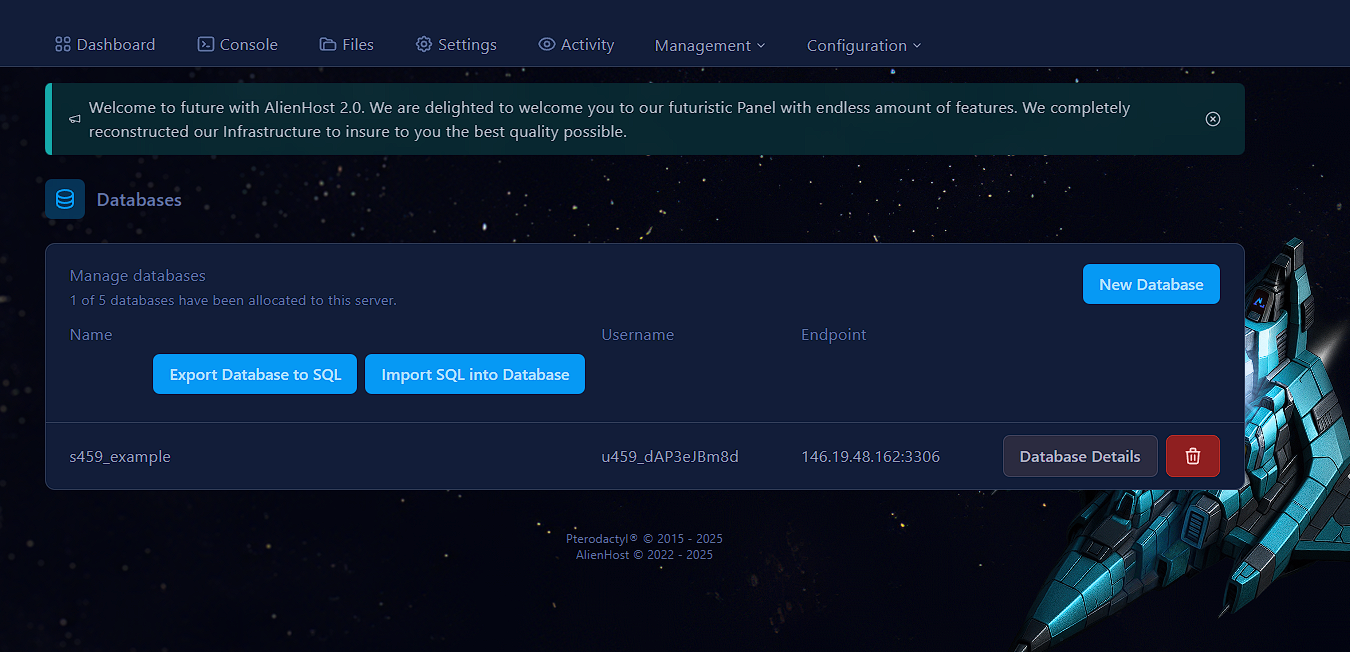](https://help.alienhost.net/uploads/images/gallery/2025-07/Ja7image.png) #### **Exporting** Click on Export `Database to SQL`. Now select a database to export (here it's s459\_example) [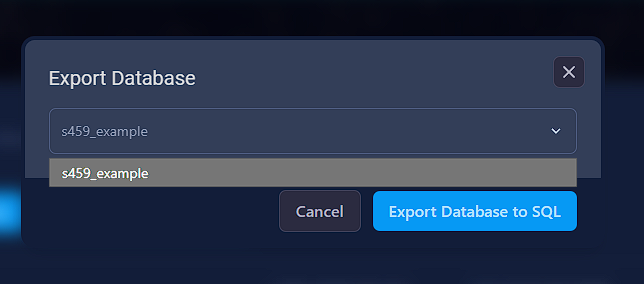](https://help.alienhost.net/uploads/images/gallery/2025-07/4Qlimage.png) Now press `Export Database to SQL` on this pop-up, and it will automatically download for you. [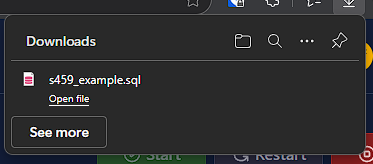](https://help.alienhost.net/uploads/images/gallery/2025-07/1osimage.png) #### **Importing** Click on `Import SQL to Database` You will be prompted to the following pop-up (toggle the options you need) [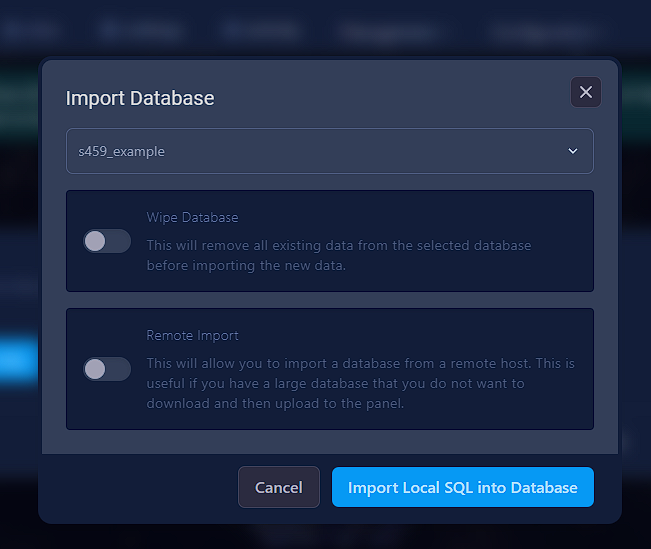](https://help.alienhost.net/uploads/images/gallery/2025-07/eQnimage.png) Click `Import Local SQL into Database` It will bring a new pop-up where you can find your .sql files on your computer. # Eggs # How to change your server's egg Go to [AlienHost's website](https://alienhost.net/) and click on **Login** (or **Register**, if you don't have an account yet) Click on your service (in the example it's "Ship Kasilur") [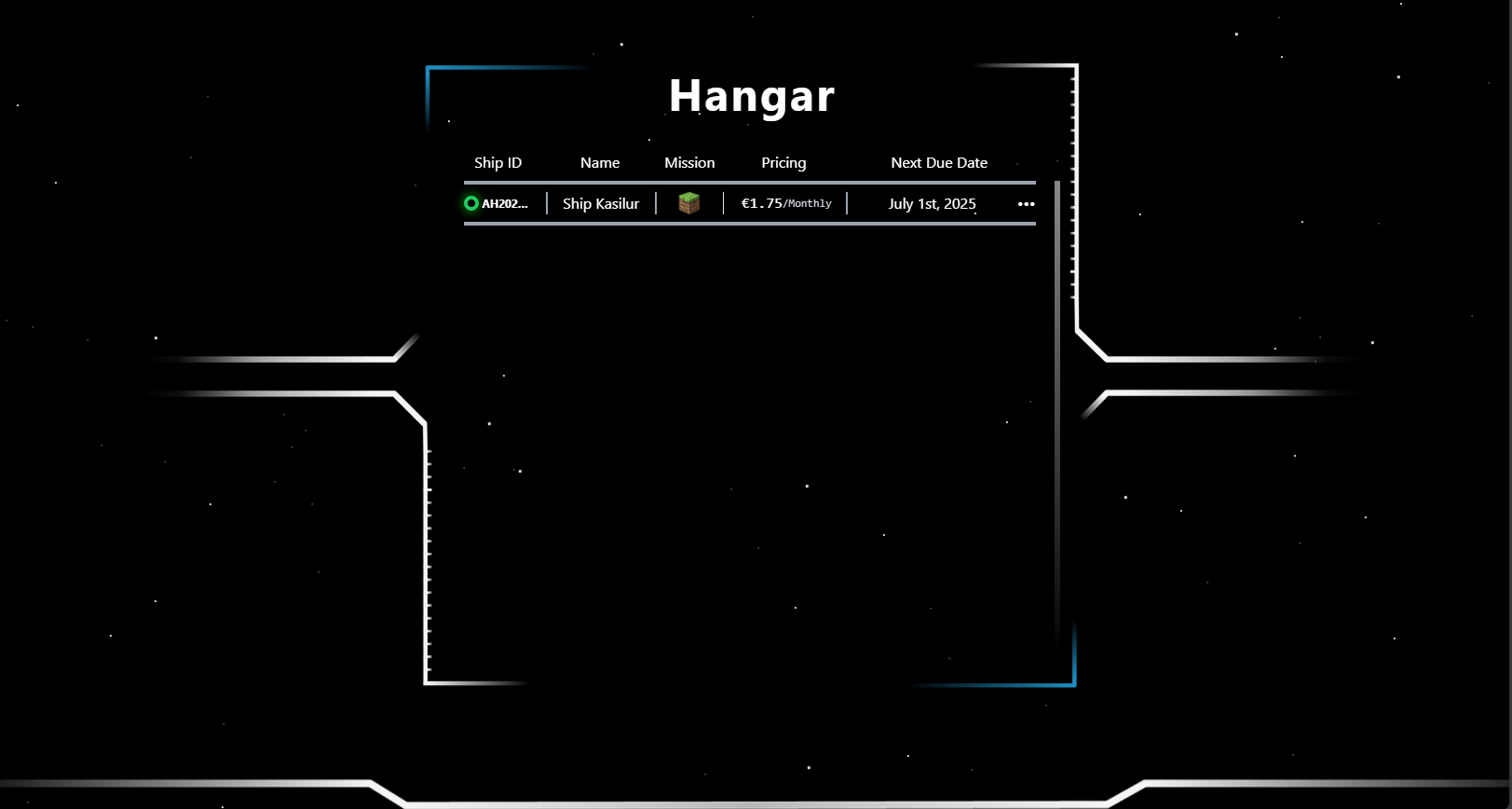](https://help.alienhost.net/uploads/images/gallery/2025-06/image.png) You'll find yourself in the following screen. Click **Manage Fleet** [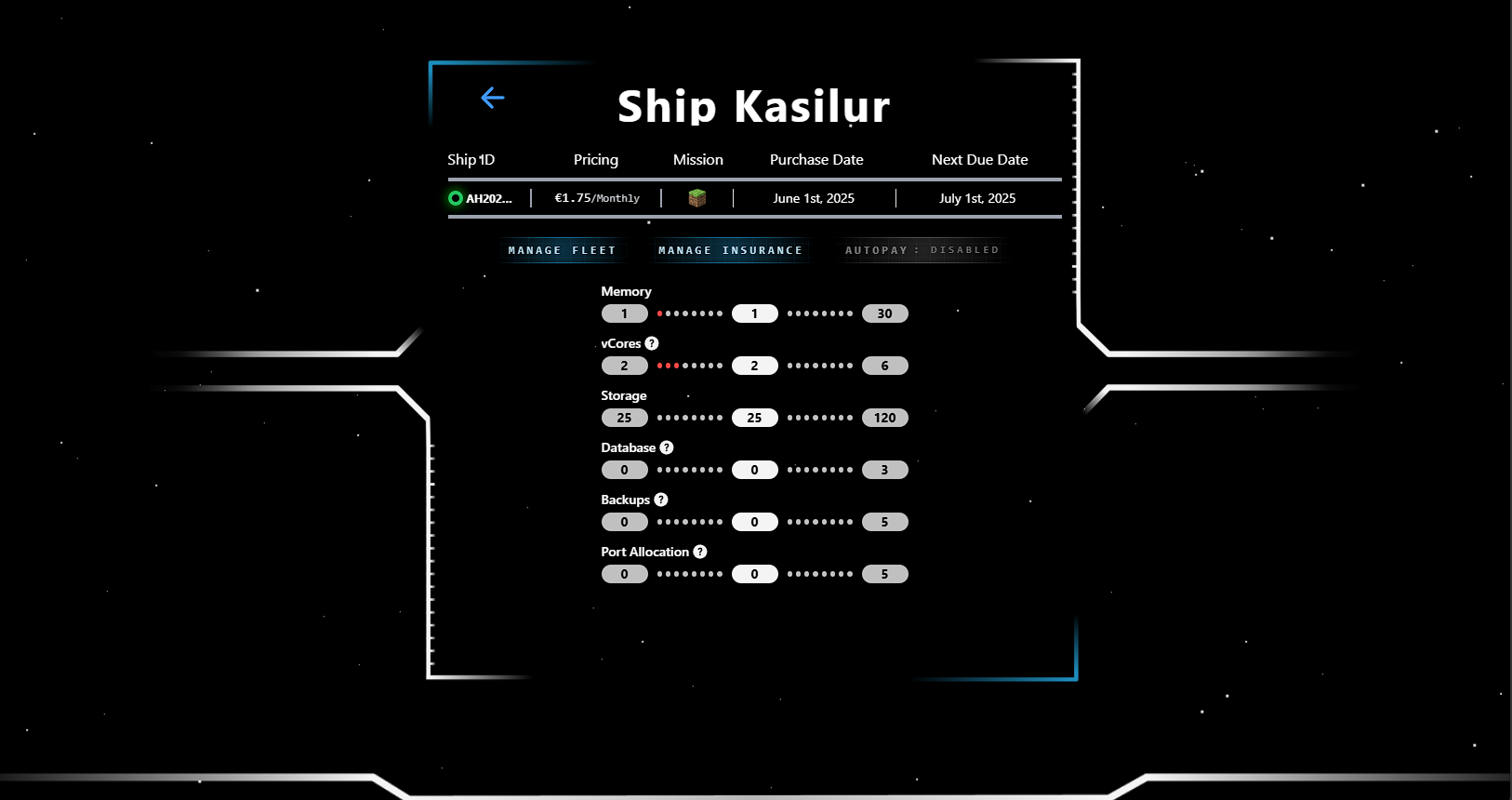](https://help.alienhost.net/uploads/images/gallery/2025-06/gmVimage.png) Now this screen will pop up, select **Core Manager**. [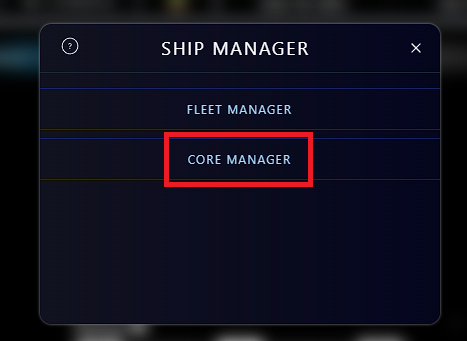](https://help.alienhost.net/uploads/images/gallery/2025-06/screenshot-2025-06-01-173029.png) Here you can see your current egg, for the server. Click on the tools icon to change your egg. [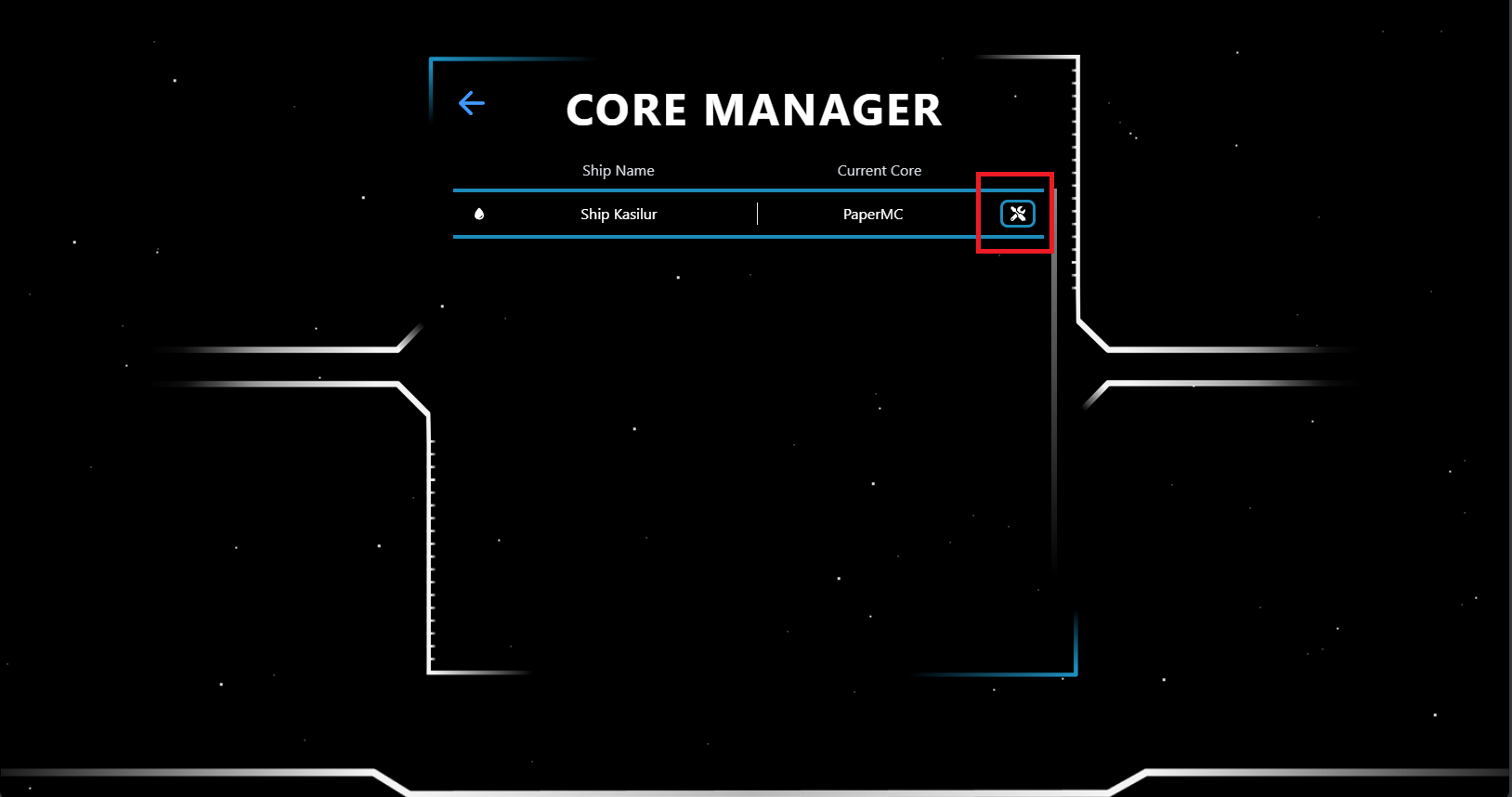](https://help.alienhost.net/uploads/images/gallery/2025-06/screenshot-2025-06-01-173139.png) Now you'll find yourself in the **Core Changer** page. Select your desired egg from the dropdown menu, and toggle the **I am sure about this** checkbox, and then click **Set Ship Core** [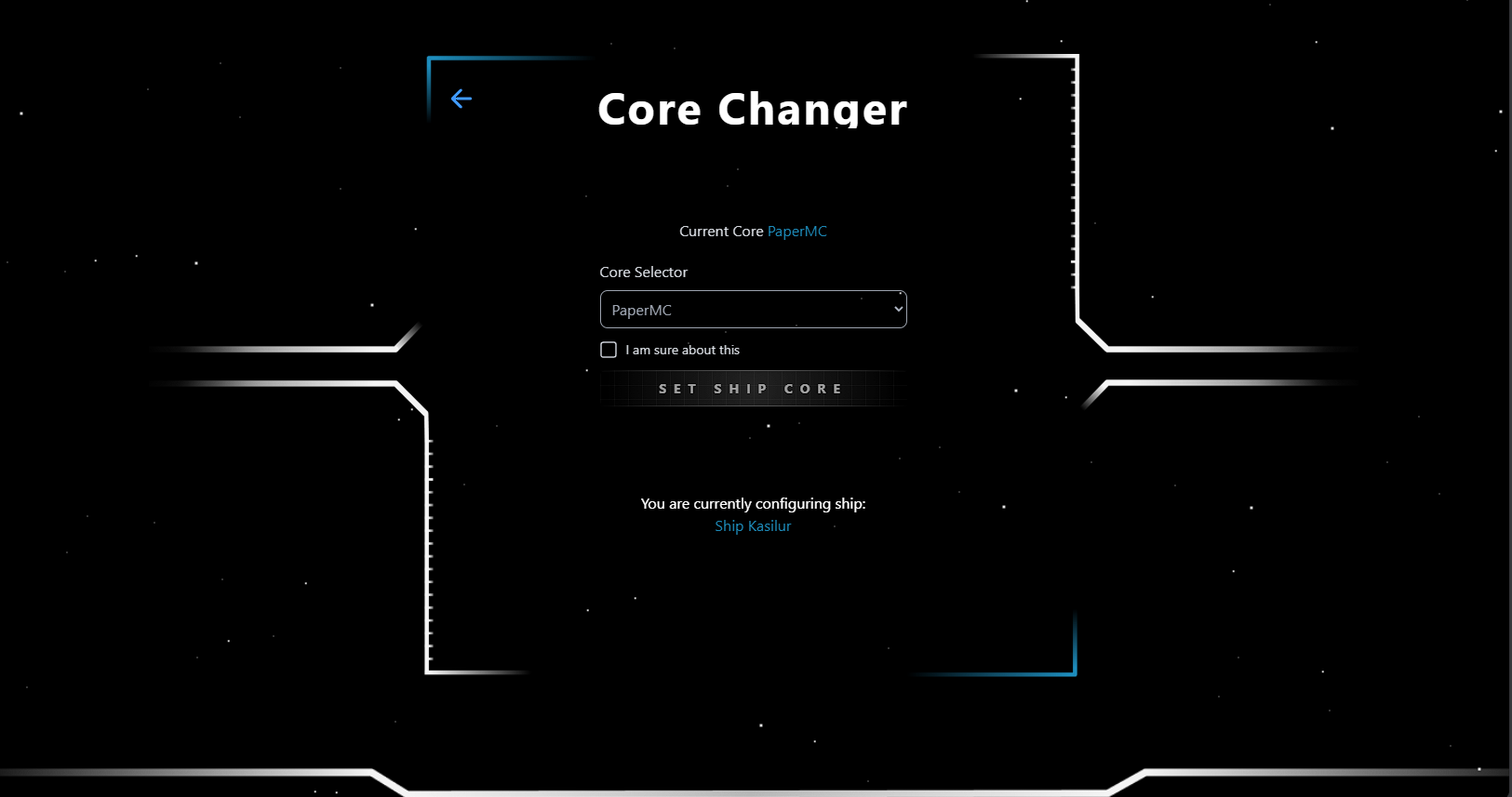](https://help.alienhost.net/uploads/images/gallery/2025-06/uo9image.png)