**Before following these steps, make sure to stop your server first. This is to avoiding breaking anything on your server while you edit.**
**Step 1:** Head to your game panel and look for your **Startup** **icon** on the left hand side. // Photos to be added on AH 2.0 **Step 2:** Look for the box that says **SERVER NAME.** When you find this box, click on it and add what ever you want your server name to be. // Photos to be added on AH 2.0**After Completing these steps, you can now go and start you server.**
# Add Server Password**Before following these steps, make sure to stop your server first. This is to avoiding breaking anything on your server while you edit.**
**Step 1:** Head to your game panel and look for your **Startup** **icon** on the left hand side. // Photos to be added on AH 2.0 **Step 2:** Look for the box that says **SERVER PASSWORD.** When you find this box, click on it and add your new server password. // Photos to be added on AH 2.0**After Completing these steps, you can now go and start you server.**
# Add Crossplay**Before following these steps, make sure to stop your server first. This is to avoiding breaking anything on your server while you edit.**
**Step 1:** Head to your game panel and look for your **Startup** **icon** on the left hand side. // Photos to be added on AH 2.0 **Step 2:** Look for the box that says **ENABLE CROSSPLAY.** When you find this box, just click on the slider and it will go grey to purple. Now you have Crossplay Enabled, if you want to disable it. Just click the box again and it will turn purple to grey letting you know Crossplay disabled. // Photos to be added on AH 2.0**After Completing these steps, you can now go and start you server.**
# Set Server To Public Or Private # Add A New World # Connect To Your Server # Add An Admin Or Remove Them**Before following these steps, make sure to stop your server first. This is to avoiding breaking anything on your server while you edit.**
**Step 1:** Head to your game panel and look for your **File Icon** on the left hand side. // Photos to be added on AH 2.0 **Step 2:** Now follow this directory to get to adminlist.txt: **/home/container/.config/unity3d/IronGate/Valheim/adminlist.txt** [](https://help.alienhost.net/uploads/images/gallery/2024-11/image.png) **Step 3:** Add in there **SteamID64 (Dec)** to the file. Use this link to find players ID [https://www.steamidfinder.com/](https://www.steamidfinder.com/) [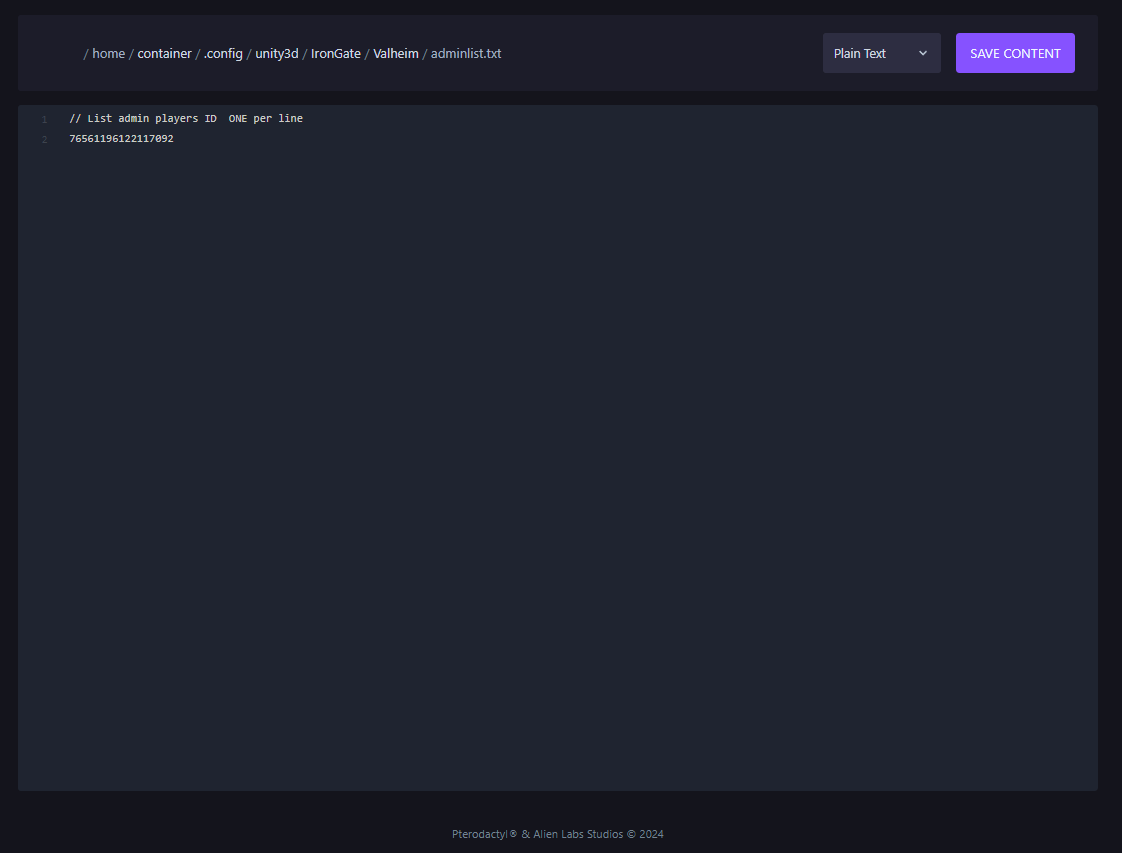](https://help.alienhost.net/uploads/images/gallery/2024-11/S4Jimage.png)If you want to add more admins to your server, just add there **SteamID** on another line as seen in the photo below.
[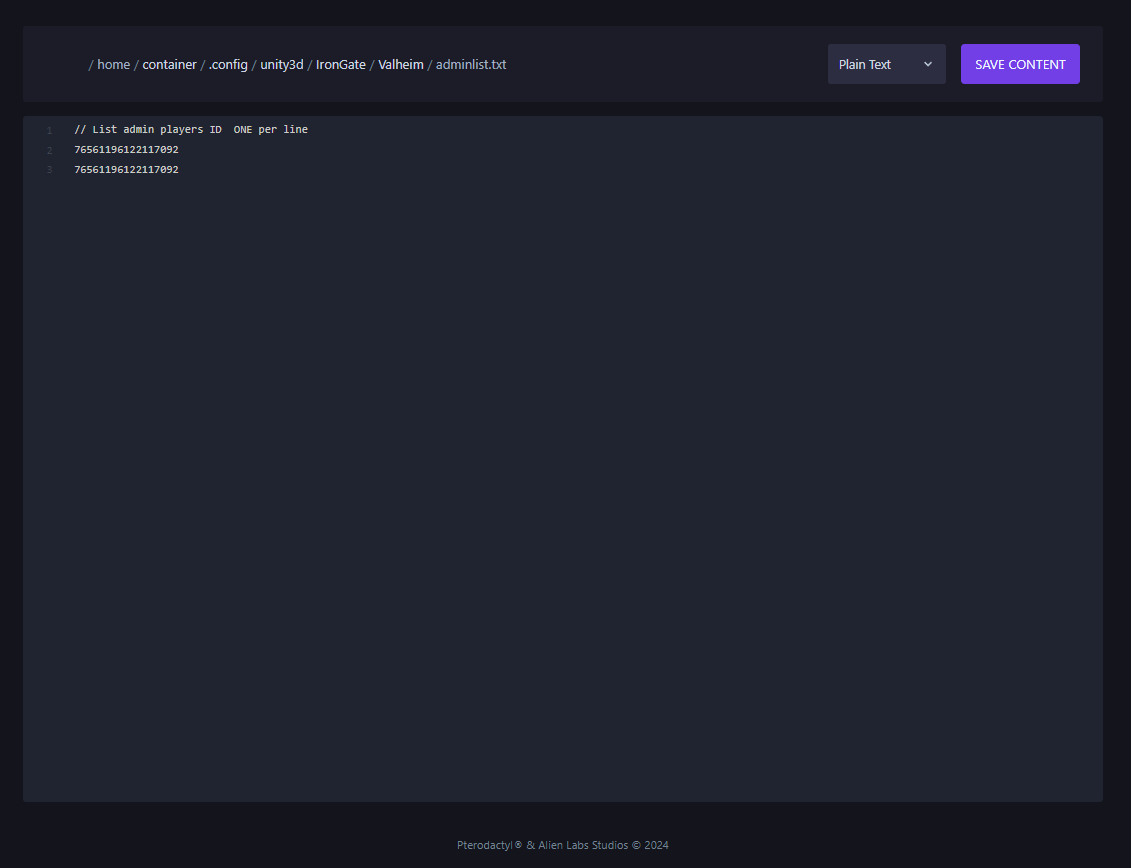](https://help.alienhost.net/uploads/images/gallery/2024-11/dUYimage.png)**After Completing these steps, save your file and you can go and start you server.**
# Kick Or Ban A Player # Whitelist Players # Full Reset Your Server # Load Different Worlds