
Export & Import your SQL Database
Step 1: Get Database Connection Details from Pterodactyl Panel
Log in to Pterodactyl Panel:
Access the Server’s Database:
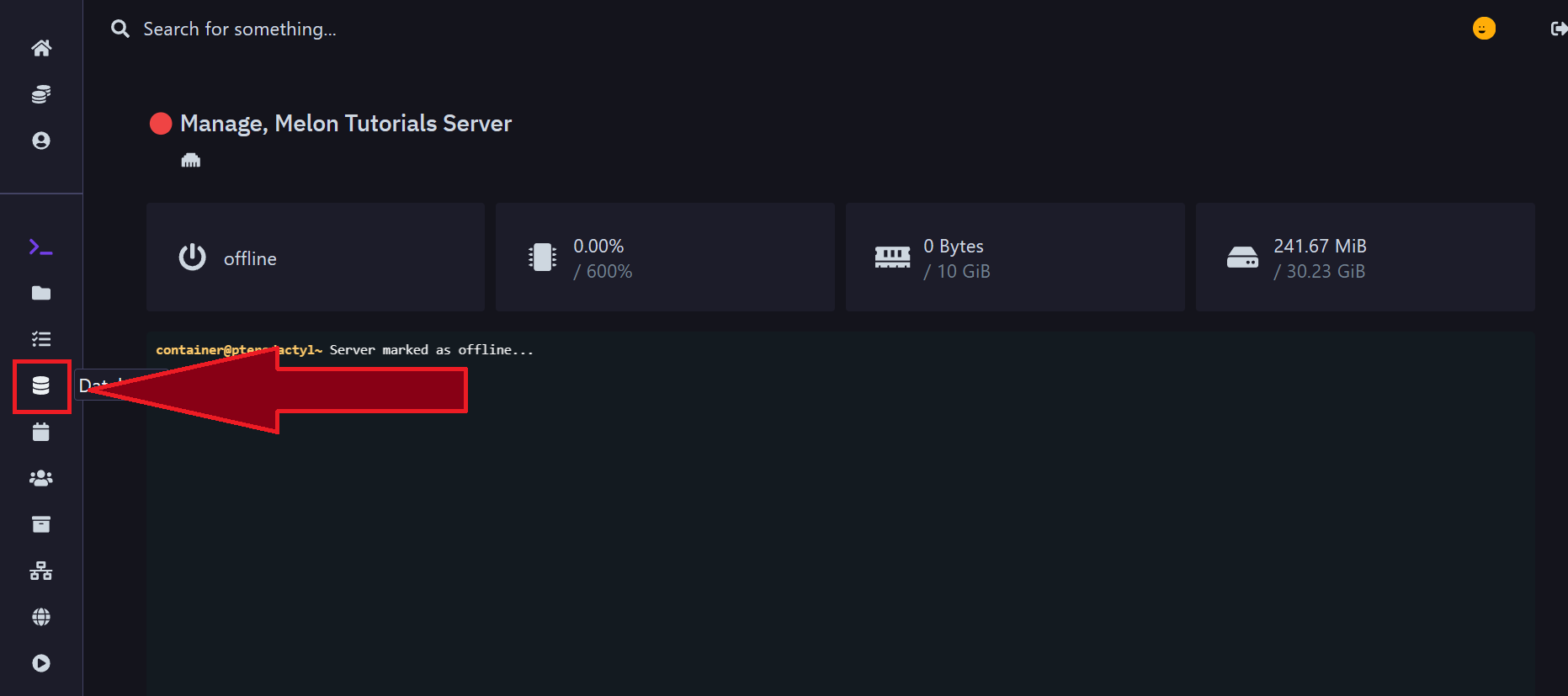
3. Copy the Connection Information:
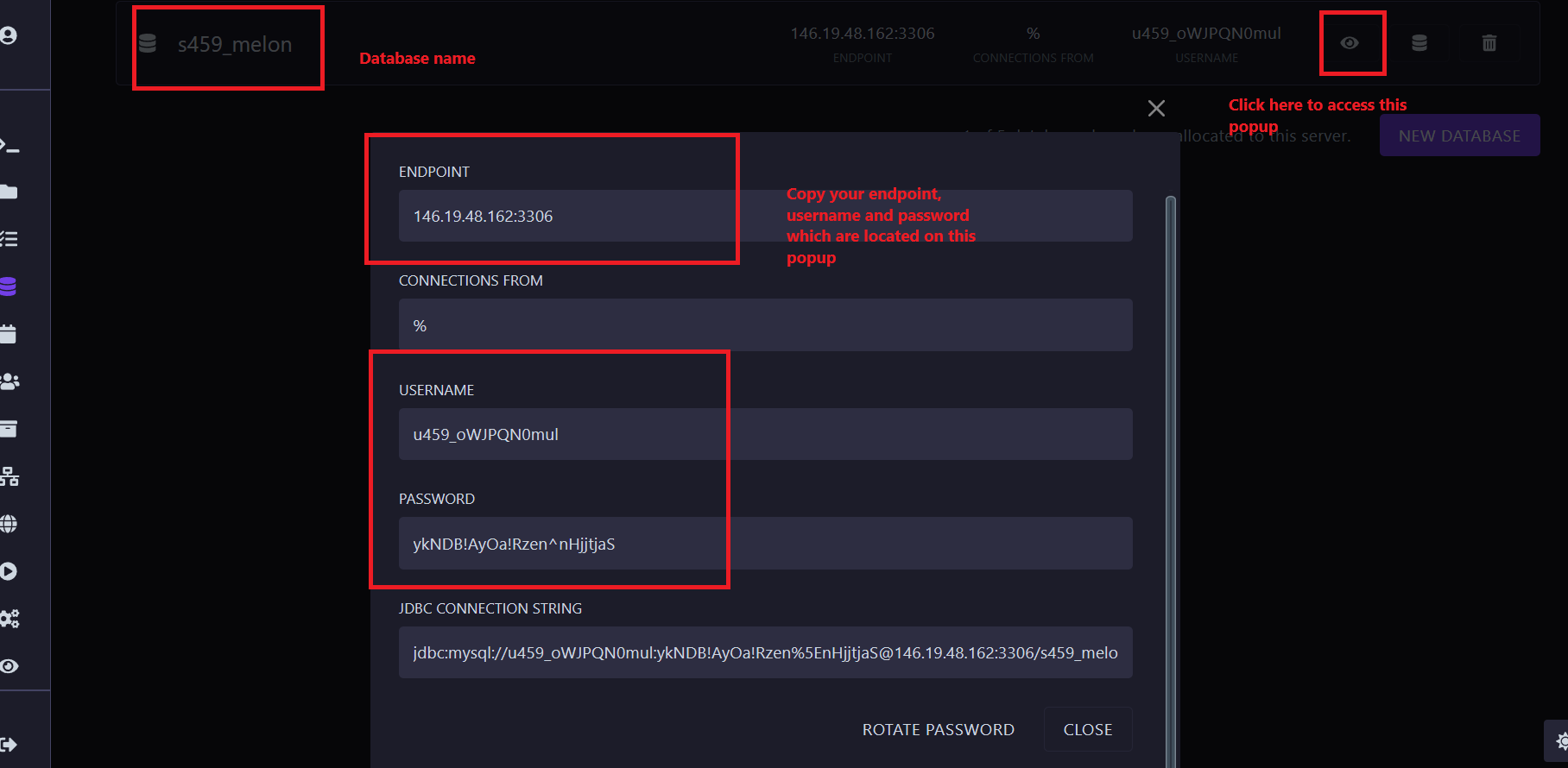 Copy these details, as you’ll need them to connect with HeidiSQL.
Step 2: Set Up HeidiSQL
Open HeidiSQL:
Create a New Session:
New on the bottom-left side of the program.
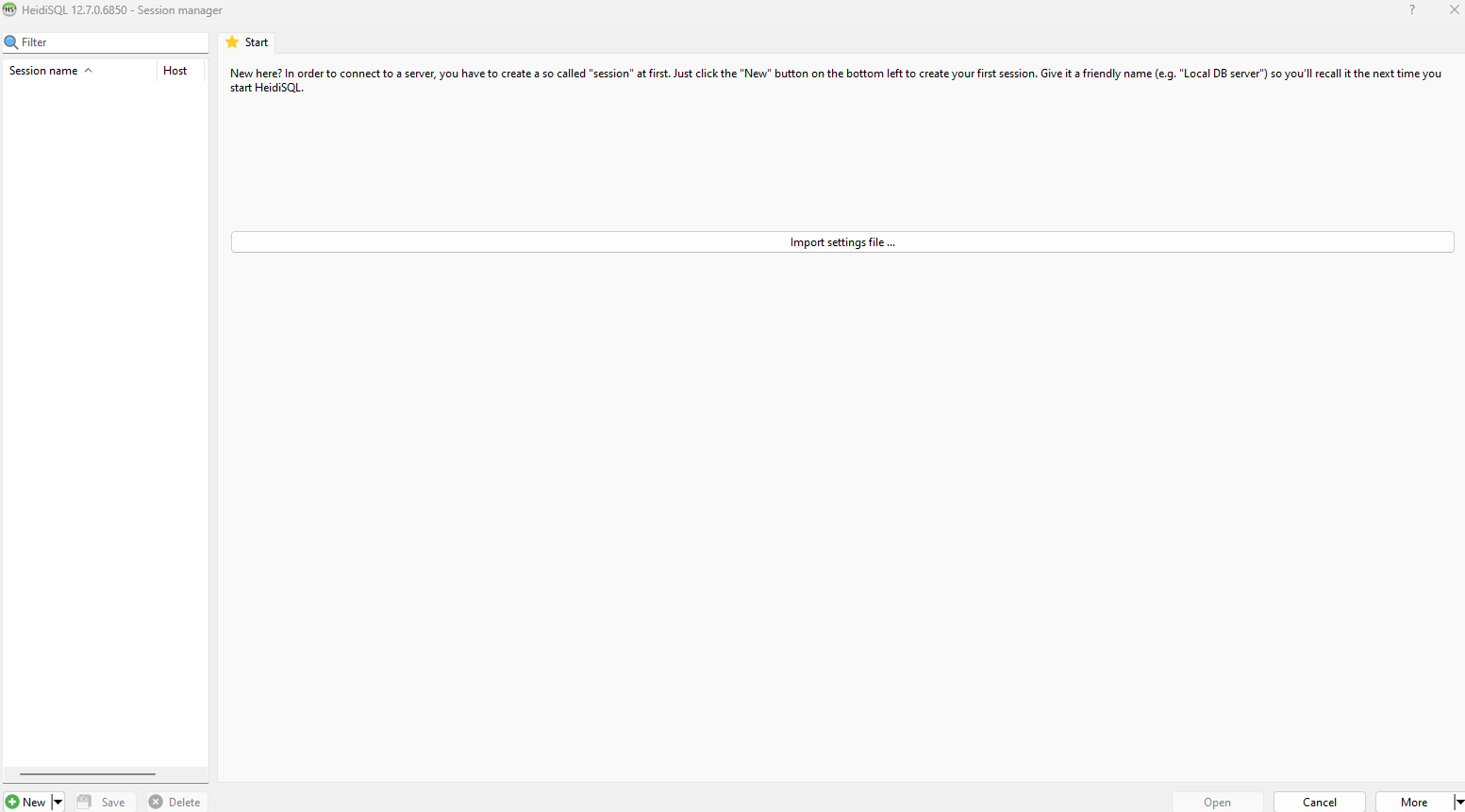
Enter Connection Details:
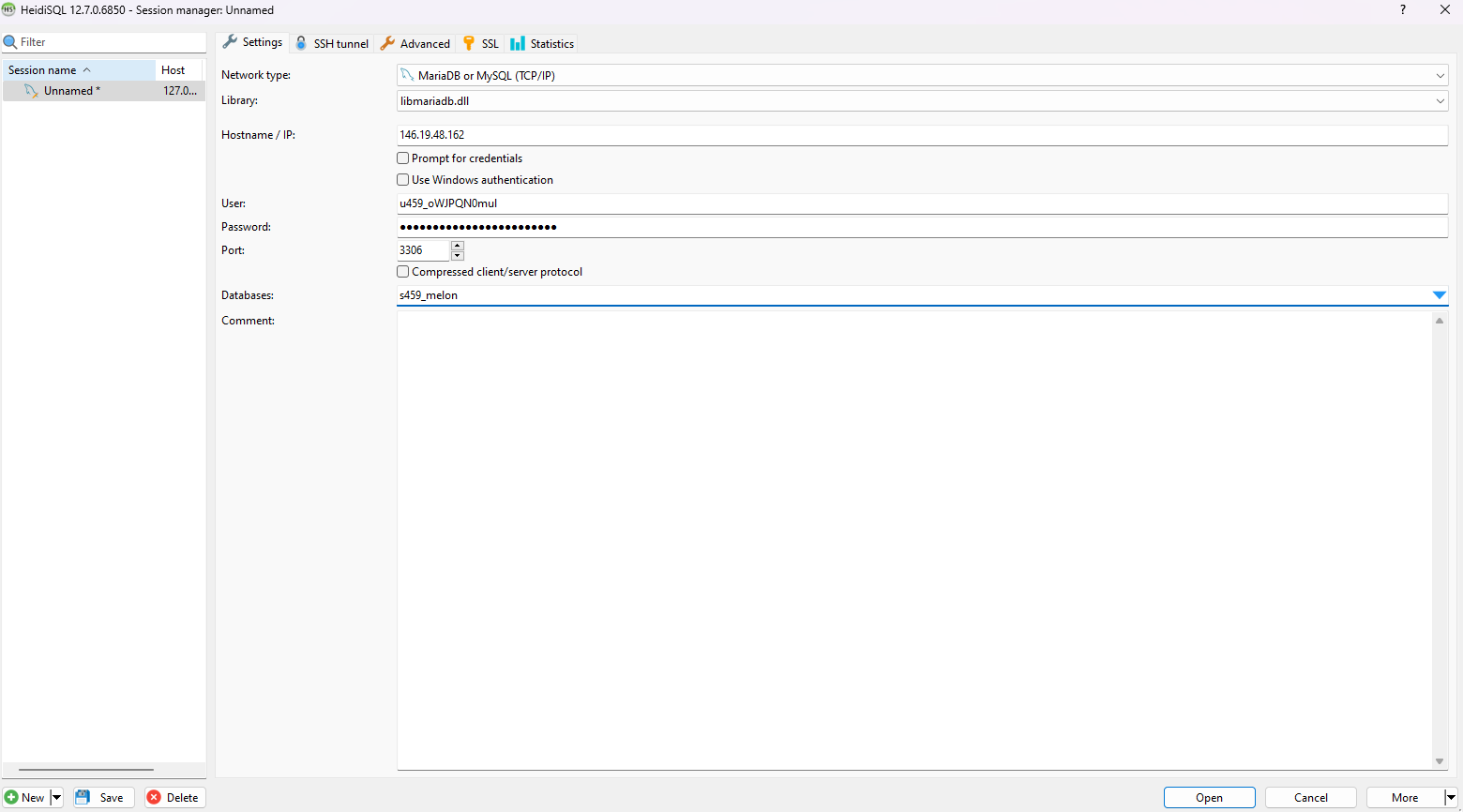 It should look something like the image above
Save and Connect:
Save, then Open to connect to the database.
If your details are correct, HeidiSQL should connect to the database successfully.
Step 3: Export a Database in HeidiSQL
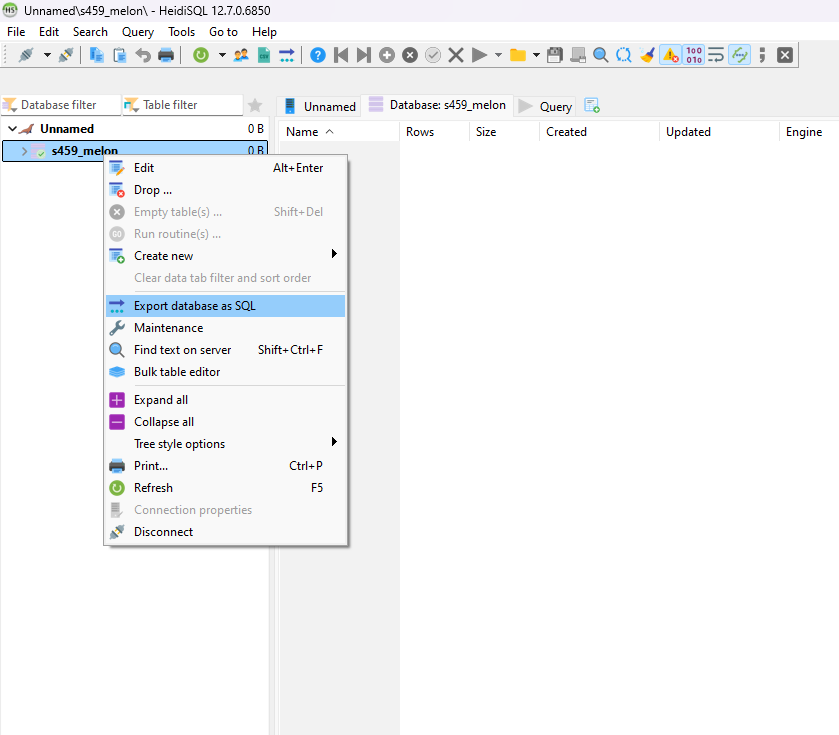
Select the Database:
Export Database:
Export Database as SQL.
Choose where to save the SQL file and adjust any export settings you need (e.g., data, structure, etc.).
Click Export to save the SQL file to your selected location.
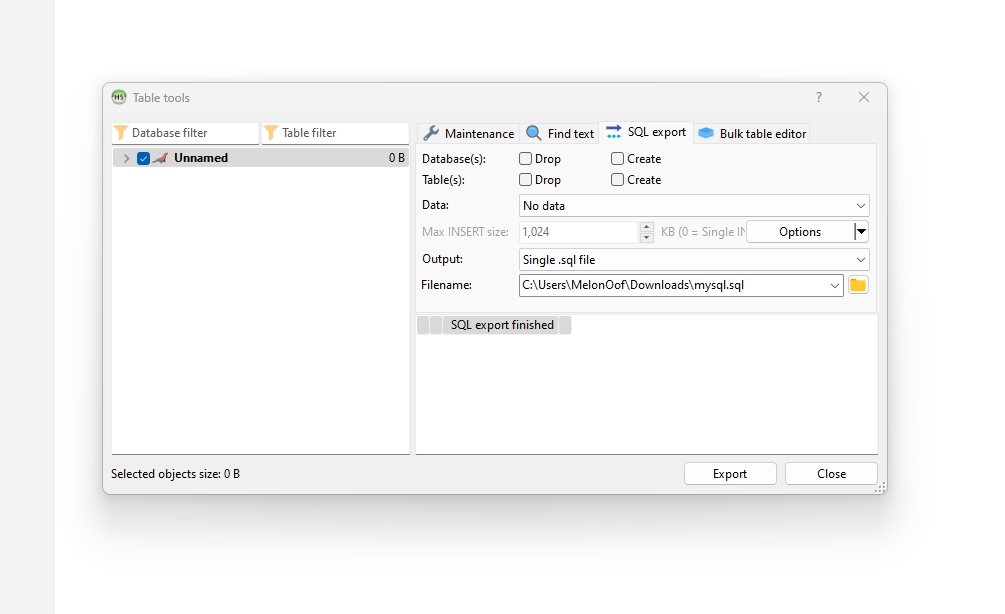
Check Exported File:
.sql file was created successfully.
Step 4: Import a Database in HeidiSQL
Select the Target Database:
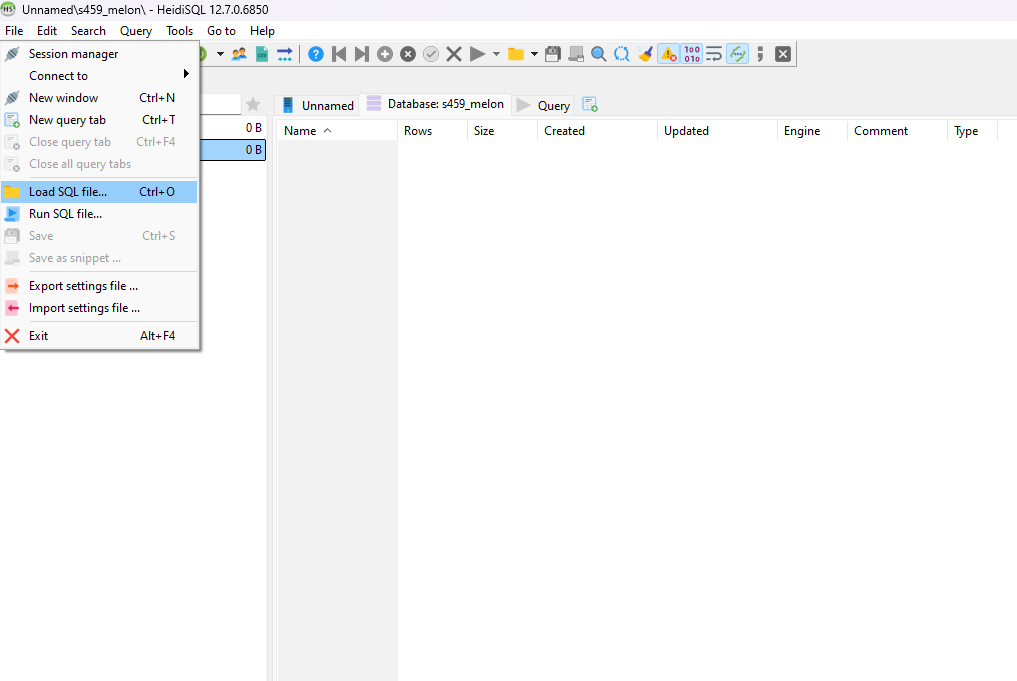
Open SQL File:
Load SQL file.
Locate the .sql file you wish to import and open it.
Execute Import:
Run to execute the commands, which will import the data and structure into the database.
Verify Import: